TRANSPARENT PNG TEXTURES
ALPHA, CUTOUTS AND GLOW VFX
By Shane Brumback · Published · Updated October 29, 2026 · Beginner Three.js tutorial · about 40 minutes
Put see-through PNG images on 3D objects the right way: soft holograms with alpha blending, crisp leaf cutouts with alphaTest, and a glowing rune ring and particle trails with additive blending. Every setting is live in the demo.
LIVE DEMO
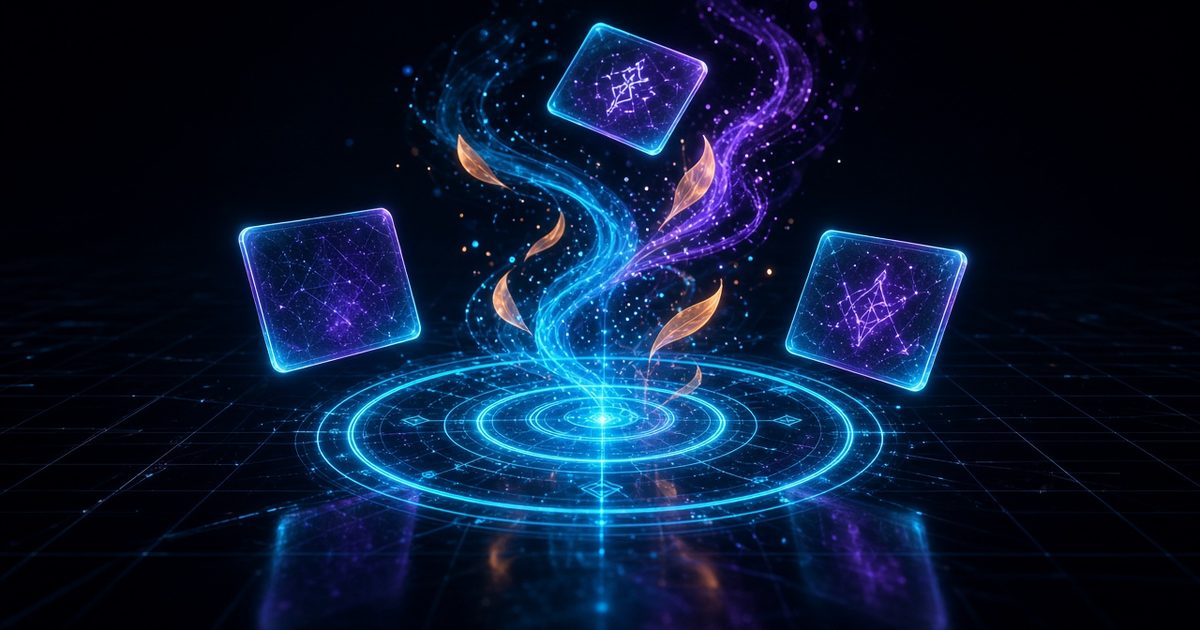
The scene behind this page is the demo: a glowing rune ring, orbiting hologram cards, swirling leaf cutouts and glowing particle trails, all made from transparent PNGs. Launch it full screen to orbit and drive every slider.
Orbit: drag · Zoom: scroll or pinch · Esc to exit
Transparent PNG Textures in Three.js (Quick Answer)
Load the PNG with TextureLoader, use it as a material map and pick a transparency mode. Use transparent: true with depthWrite: false for soft see-through surfaces, alphaTest (around 0.5) for crisp cutouts like leaves, and AdditiveBlending for glows, magic and sparks. Set the texture colorSpace to SRGBColorSpace so colors match the image.
Introduction
A transparent PNG is the fastest way to make a 3D scene feel rich. Leaves, grass, fences, decals, holograms, fire and magic circles in most browser games are not complex models. They are flat planes with a PNG that has see-through parts. The hard part is not loading the image. It is choosing the right transparency mode, because the wrong one gives you black boxes, white fringes or objects that vanish behind each other.
In plain words: we draw a few images with see-through areas, put them on flat shapes in a 3D scene, and use three different see-through tricks so each one looks right. The result is a little magic portal: a glowing rune circle on the floor, hologram cards orbiting it, leaves swirling around and sparks streaking upward.
This page replaces my original 2023 example with a full, free, step-by-step build. All the code is below, nothing is locked, and you can launch it in one click.
Key Concepts
- Alpha channel: The A in RGBA: how see-through each pixel of the PNG is, from 0 (invisible) to 1 (solid).
- Alpha blending: transparent: true mixes the texture with the background using its alpha. Good for soft, see-through things like holograms.
- alphaTest: Discards pixels below a threshold. Crisp cutouts with no sorting issues. Good for leaves, grass and fences.
- Additive blending: Adds the texture color to the background, so black is invisible and bright pixels glow. Good for fire, magic and sparks.
- depthWrite: When false, a transparent object does not block things drawn after it. Turn it off for glows and holograms.
- InstancedMesh: Draws hundreds of copies of one mesh in a single draw call, each with its own position and rotation.
Which Transparency Mode Should You Use?
| Look you want | Setting | In this demo |
|---|---|---|
| Crisp cutout edge | alphaTest: 0.5 | Swirling leaves |
| Soft see-through surface | transparent: true, depthWrite: false | Hologram cards |
| Glowing light | AdditiveBlending, depthWrite: false | Rune ring and sparks |
Frequently Asked Questions
How do I add a transparent PNG texture in Three.js?
Load the PNG with THREE.TextureLoader, set it as the map of a material, and set transparent: true. Three.js then uses the PNG alpha channel to blend the object with what is behind it. Set texture.colorSpace to THREE.SRGBColorSpace so colors look right.
Why does my transparent PNG show black or white edges?
The edge pixels are being sorted or written to the depth buffer wrongly. For hard edges use alphaTest (for example 0.5) instead of transparent. For soft glow use depthWrite: false, and for additive light effects use THREE.AdditiveBlending.
What is the difference between alphaTest and transparent in Three.js?
transparent: true blends partially see-through pixels and needs sorting. alphaTest simply discards pixels below a threshold, so there is no blending and no sorting, which makes it ideal for leaves, grass and fences with crisp edges.
How do I make glowing particles with a PNG in Three.js?
Use a soft radial-gradient PNG as the map of a PointsMaterial, set blending to THREE.AdditiveBlending, transparent to true and depthWrite to false. Overlapping sprites add their light together and read like a glow without any post-processing.
Why do transparent objects disappear behind each other?
They write to the depth buffer, so the first one drawn blocks the one behind it. Set depthWrite: false on glow and hologram materials, or use alphaTest for solid cutouts.
Can I use transparent PNG textures on mobile?
Yes. Everything in this demo runs on phones. Keep particle counts moderate, cap the pixel ratio and draw repeated objects with InstancedMesh, as this code does.
How It Works
- Set up the renderer, scene, camera and orbit controls — In plain words: We make the 3D window, a camera to look through and mouse or touch orbit controls. Pixel ratio is capped on phones so the effect stays smooth, and fog gives the scene depth.
- Draw transparent PNGs on a canvas — In plain words: We paint four images with see-through parts, save them as real PNG files in memory and load them with TextureLoader, the same way you would load a .png from disk. A PNG keeps an alpha channel, the fourth number in RGBA that says how see-through each pixel is.
- Add lights and a shiny floor — In plain words: A soft sky light, a pulsing cyan point light and a metal floor give the transparent pieces something to glow against. The grid is itself made transparent with opacity 0.25.
- Make a glowing rune ring decal — In plain words: A flat plane uses the rune PNG with AdditiveBlending, so its color is added to whatever is behind it. Black pixels add nothing, which is why the ring looks like pure light. depthWrite false stops it hiding things behind it.
- Float semi-transparent hologram cards — In plain words: Normal alpha blending mixes the card with the background using the PNG alpha times the material opacity. DoubleSide lets you see the card from behind as it orbits.
- Swirl leaf cutouts with alphaTest — In plain words: Hundreds of leaves are one InstancedMesh, so they draw in a single call. alphaTest throws away any pixel with alpha below the threshold, giving crisp cutout edges with no sorting problems, the classic trick for leaves, grass and fences.
- Add glowing particles with trails — In plain words: A Points cloud uses the soft glow PNG as its sprite with additive blending. Each spark keeps six trail points that fade by color, so moving sparks leave comet-like streaks.
- Wire up the live sliders — In plain words: Each slider changes one material setting live: the alphaTest edge, card opacity, sprite size, how many leaves and sparks draw, swirl speed and additive versus normal blending.
- Animate everything in one loop — In plain words: Every frame we spin the runes, orbit the cards, move the leaves and sparks and write their new positions to the GPU buffers. Delta time is capped so a slow frame never makes things jump.
Code Breakdown
Every step below is the exact code from the full file, in the order you build it. Beginners: read the plain-words line. Developers: the snippet is copy-paste ready.
1. Set up the renderer, scene, camera and orbit controls
In plain words: We make the 3D window, a camera to look through and mouse or touch orbit controls. Pixel ratio is capped on phones so the effect stays smooth, and fog gives the scene depth.
const isMobile = Math.min(innerWidth, innerHeight) < 600 || matchMedia('(pointer: coarse)').matches;
const renderer = new THREE.WebGLRenderer({ antialias: !isMobile, alpha: false });
renderer.setPixelRatio(Math.min(devicePixelRatio, isMobile ? 1.5 : 2));
renderer.setSize(innerWidth, innerHeight);
renderer.domElement.id = 'renderer';
document.body.appendChild(renderer.domElement);

const scene = new THREE.Scene();
scene.background = new THREE.Color(0x05060d);
scene.fog = new THREE.FogExp2(0x05060d, 0.035);
const camera = new THREE.PerspectiveCamera(60, innerWidth / innerHeight, 0.1, 200);
camera.position.set(0, 3.2, 9);
const controls = new OrbitControls(camera, renderer.domElement);
controls.target.set(0, 1.6, 0);
controls.enableDamping = true;
controls.autoRotate = true;
controls.autoRotateSpeed = 0.6;
controls.enabled = !window.__PAGE_MODE;
2. Draw transparent PNGs on a canvas
In plain words: We paint four images with see-through parts, save them as real PNG files in memory and load them with TextureLoader, the same way you would load a .png from disk. A PNG keeps an alpha channel, the fourth number in RGBA that says how see-through each pixel is.
// Each helper draws on a 2D canvas, encodes it as a real PNG (with alpha)
// and loads it back through THREE.TextureLoader, exactly like a file on disk.
const loader = new THREE.TextureLoader();
function makePNG(size, draw) {
  const c = document.createElement('canvas');
  c.width = c.height = size;
  draw(c.getContext('2d'), size);
  const tex = loader.load(c.toDataURL('image/png'));
  tex.colorSpace = THREE.SRGBColorSpace;
  return tex;
}
// Soft glow: radial gradient fading to fully transparent
const glowPNG = makePNG(128, (g, s) => {
  const r = g.createRadialGradient(s/2, s/2, 0, s/2, s/2, s/2);
  r.addColorStop(0, 'rgba(255,255,255,1)');
  r.addColorStop(0.25, 'rgba(120,240,255,0.8)');
  r.addColorStop(1, 'rgba(0,80,255,0)');
  g.fillStyle = r; g.fillRect(0, 0, s, s);
});
// Leaf cutout: hard alpha edge, used with alphaTest
const leafPNG = makePNG(128, (g, s) => {
  g.translate(s/2, s/2); g.rotate(Math.PI / 4);
  const grd = g.createLinearGradient(-s/2, 0, s/2, 0);
  grd.addColorStop(0, '#ff7a18'); grd.addColorStop(1, '#ffd200');
  g.fillStyle = grd;
  g.beginPath(); g.ellipse(0, 0, s*0.42, s*0.2, 0, 0, Math.PI*2); g.fill();
  g.strokeStyle = 'rgba(90,30,0,0.9)'; g.lineWidth = 3;
  g.beginPath(); g.moveTo(-s*0.4, 0); g.lineTo(s*0.4, 0); g.stroke();
});
// Rune ring: transparent everywhere except the glowing rings and glyphs
const runePNG = makePNG(512, (g, s) => {
  g.translate(s/2, s/2);
  g.strokeStyle = 'rgba(42,209,214,1)'; g.shadowColor = '#2ad1d6'; g.shadowBlur = 18;
  [0.46, 0.36, 0.2].forEach((k, i) => { g.lineWidth = i === 1 ? 3 : 6; g.beginPath(); g.arc(0, 0, s*k, 0, Math.PI*2); g.stroke(); });
  g.fillStyle = 'rgba(160,255,255,1)'; g.font = 'bold 34px monospace'; g.textAlign = 'center'; g.textBaseline = 'middle';
  const glyphs = 'ALPHA*PNG*RGBA*BLEND*';
  for (let i = 0; i < glyphs.length; i++) {
    const a = (i / glyphs.length) * Math.PI * 2;
    g.save(); g.rotate(a); g.fillText(glyphs[i], 0, -s*0.41); g.restore();
  }
  for (let i = 0; i < 6; i++) { const a = i * Math.PI / 3; g.beginPath(); g.moveTo(Math.cos(a)*s*0.2, Math.sin(a)*s*0.2); g.lineTo(Math.cos(a+Math.PI*2/3)*s*0.2, Math.sin(a+Math.PI*2/3)*s*0.2); g.stroke(); }
});
// Hologram card: semi-transparent gradient with scanlines and a frame
const cardPNG = makePNG(256, (g, s) => {
  const grd = g.createLinearGradient(0, 0, 0, s);
  grd.addColorStop(0, 'rgba(42,209,214,0.55)'); grd.addColorStop(1, 'rgba(170,60,255,0.12)');
  g.fillStyle = grd; g.fillRect(0, 0, s, s);
  g.fillStyle = 'rgba(255,255,255,0.12)';
  for (let y = 0; y < s; y += 6) g.fillRect(0, y, s, 2);
  g.strokeStyle = 'rgba(200,255,255,0.95)'; g.lineWidth = 6; g.strokeRect(8, 8, s-16, s-16);
  g.fillStyle = 'rgba(255,255,255,0.9)'; g.font = 'bold 40px Arial'; g.textAlign = 'center'; g.fillText('PNG', s/2, s/2 + 14);
});
3. Add lights and a shiny floor
In plain words: A soft sky light, a pulsing cyan point light and a metal floor give the transparent pieces something to glow against. The grid is itself made transparent with opacity 0.25.
scene.add(new THREE.HemisphereLight(0x88ccff, 0x110022, 0.7));
const key = new THREE.PointLight(0x2ad1d6, 30, 30); key.position.set(0, 4, 0); scene.add(key);
const floor = new THREE.Mesh(new THREE.CircleGeometry(14, 64), new THREE.MeshStandardMaterial({ color: 0x0a0f1c, roughness: 0.35, metalness: 0.6 }));
floor.rotation.x = -Math.PI / 2; scene.add(floor);
const grid = new THREE.GridHelper(28, 56, 0x2ad1d6, 0x123040);
grid.material.transparent = true; grid.material.opacity = 0.25; grid.position.y = 0.01; scene.add(grid);
4. Make a glowing rune ring decal
In plain words: A flat plane uses the rune PNG with AdditiveBlending, so its color is added to whatever is behind it. Black pixels add nothing, which is why the ring looks like pure light. depthWrite false stops it hiding things behind it.
const runeMat = new THREE.MeshBasicMaterial({ map: runePNG, transparent: true, blending: THREE.AdditiveBlending, depthWrite: false, side: THREE.DoubleSide });
const rune = new THREE.Mesh(new THREE.PlaneGeometry(7, 7), runeMat);
rune.rotation.x = -Math.PI / 2; rune.position.y = 0.03; scene.add(rune);
const runeTop = rune.clone(); runeTop.material = runeMat.clone(); runeTop.scale.setScalar(0.45); runeTop.position.y = 3.4; scene.add(runeTop);
5. Float semi-transparent hologram cards
In plain words: Normal alpha blending mixes the card with the background using the PNG alpha times the material opacity. DoubleSide lets you see the card from behind as it orbits.
const cardMat = new THREE.MeshBasicMaterial({ map: cardPNG, transparent: true, opacity: 0.85, side: THREE.DoubleSide, depthWrite: false });
const cards = [];
for (let i = 0; i < 3; i++) {
  const m = new THREE.Mesh(new THREE.PlaneGeometry(1.8, 1.8), cardMat);
  m.userData.a = i * Math.PI * 2 / 3; scene.add(m); cards.push(m);
}
6. Swirl leaf cutouts with alphaTest
In plain words: Hundreds of leaves are one InstancedMesh, so they draw in a single call. alphaTest throws away any pixel with alpha below the threshold, giving crisp cutout edges with no sorting problems, the classic trick for leaves, grass and fences.
const MAX_LEAVES = 600;
const leafMat = new THREE.MeshBasicMaterial({ map: leafPNG, alphaTest: 0.5, side: THREE.DoubleSide });
const leaves = new THREE.InstancedMesh(new THREE.PlaneGeometry(0.35, 0.35), leafMat, MAX_LEAVES);
const leafData = [];
for (let i = 0; i < MAX_LEAVES; i++) leafData.push({ r: 1.5 + Math.random() * 4, a: Math.random() * Math.PI * 2, y: Math.random() * 5, s: 0.4 + Math.random(), spin: Math.random() * 6 });
scene.add(leaves);
7. Add glowing particles with trails
In plain words: A Points cloud uses the soft glow PNG as its sprite with additive blending. Each spark keeps six trail points that fade by color, so moving sparks leave comet-like streaks.
const MAX_SPARKS = 400, TRAIL = 6;
const sparkPos = new Float32Array(MAX_SPARKS * TRAIL * 3);
const sparkCol = new Float32Array(MAX_SPARKS * TRAIL * 3);
const sparkGeo = new THREE.BufferGeometry();
sparkGeo.setAttribute('position', new THREE.BufferAttribute(sparkPos, 3));
sparkGeo.setAttribute('color', new THREE.BufferAttribute(sparkCol, 3));
const sparkMat = new THREE.PointsMaterial({ map: glowPNG, size: 0.35, vertexColors: true, transparent: true, blending: THREE.AdditiveBlending, depthWrite: false });
const sparks = new THREE.Points(sparkGeo, sparkMat); scene.add(sparks);
const sparkData = [];
for (let i = 0; i < MAX_SPARKS; i++) sparkData.push({ r: 0.6 + Math.random() * 3.2, a: Math.random() * Math.PI * 2, y: Math.random() * 4, v: 0.6 + Math.random() * 1.4, hue: 0.45 + Math.random() * 0.35 });
8. Wire up the live sliders
In plain words: Each slider changes one material setting live: the alphaTest edge, card opacity, sprite size, how many leaves and sparks draw, swirl speed and additive versus normal blending.
const params = { alphaTest: 0.5, cardOpacity: 0.85, glowSize: 0.35, leaves: isMobile ? 250 : 450, sparks: isMobile ? 160 : 320, swirl: 1, additive: 1 };
const SLIDERS = [
  ['Alpha test (cutout edge)', 'alphaTest', 0.05, 0.95, 0.05],
  ['Hologram opacity', 'cardOpacity', 0.1, 1, 0.05],
  ['Glow size', 'glowSize', 0.1, 1, 0.05],
  ['Leaf count', 'leaves', 0, MAX_LEAVES, 10],
  ['Glow particles', 'sparks', 0, MAX_SPARKS, 10],
  ['Swirl speed', 'swirl', 0, 3, 0.1],
  ['Additive glow (0 = normal)', 'additive', 0, 1, 1]
];
function buildUI(container) {
  if (!container) return;
  const wrap = document.createElement('div'); wrap.id = 'ui-container';
  SLIDERS.forEach(([label, k, min, max, step]) => {
    const d = document.createElement('div');
    const l = document.createElement('div'); l.className = 'slider-label';
    const inp = document.createElement('input'); inp.type = 'range'; inp.min = min; inp.max = max; inp.step = step; inp.value = params[k];
    const show = () => { l.textContent = label + ': ' + params[k]; };
    inp.oninput = () => { params[k] = parseFloat(inp.value); applyParams(); show(); };
    show(); d.appendChild(l); d.appendChild(inp); wrap.appendChild(d);
  });
  container.appendChild(wrap);
}
function applyParams() {
  leafMat.alphaTest = params.alphaTest; leafMat.needsUpdate = true;
  cardMat.opacity = params.cardOpacity;
  sparkMat.size = params.glowSize;
  sparkMat.blending = params.additive ? THREE.AdditiveBlending : THREE.NormalBlending; sparkMat.needsUpdate = true;
  leaves.count = params.leaves;
  sparkGeo.setDrawRange(0, params.sparks * TRAIL);
}
buildUI(document.getElementById('demo-sliders'));
applyParams();
9. Animate everything in one loop
In plain words: Every frame we spin the runes, orbit the cards, move the leaves and sparks and write their new positions to the GPU buffers. Delta time is capped so a slow frame never makes things jump.
const dummy = new THREE.Object3D(), col = new THREE.Color();
const clock = new THREE.Clock();
let paused = false;
document.addEventListener('visibilitychange', () => { paused = document.hidden; });
function animate() {
  requestAnimationFrame(animate);
  if (paused) return;
  const dt = Math.min(clock.getDelta(), 0.05), t = clock.elapsedTime, sw = params.swirl;
  rune.rotation.z += dt * 0.3 * sw; runeTop.rotation.z -= dt * 0.6 * sw;
  runeMat.opacity = 0.75 + Math.sin(t * 2) * 0.25;
  key.intensity = 24 + Math.sin(t * 3) * 8;
  cards.forEach((m) => { const a = m.userData.a + t * 0.4 * sw; m.position.set(Math.cos(a) * 3, 1.8 + Math.sin(t + m.userData.a) * 0.3, Math.sin(a) * 3); m.lookAt(0, 1.8, 0); });
  for (let i = 0; i < params.leaves; i++) {
    const L = leafData[i]; L.a += dt * 0.5 * sw / L.s; L.y -= dt * 0.4 * L.s; if (L.y < 0) L.y = 5;
    dummy.position.set(Math.cos(L.a) * L.r, L.y, Math.sin(L.a) * L.r);
    dummy.rotation.set(t * L.spin * 0.3, t * L.spin * 0.2, L.a); dummy.scale.setScalar(L.s);
    dummy.updateMatrix(); leaves.setMatrixAt(i, dummy.matrix);
  }
  leaves.instanceMatrix.needsUpdate = true;
  for (let i = 0; i < params.sparks; i++) {
    const S = sparkData[i]; S.a += dt * S.v * sw; S.y += dt * 0.5 * S.v; if (S.y > 4.5) S.y = 0;
    col.setHSL(S.hue, 1, 0.6);
    for (let k = 0; k < TRAIL; k++) {
      const a = S.a - k * 0.06 * S.v, j = (i * TRAIL + k) * 3, fade = 1 - k / TRAIL;
      sparkPos[j] = Math.cos(a) * S.r; sparkPos[j+1] = S.y - k * 0.03; sparkPos[j+2] = Math.sin(a) * S.r;
      sparkCol[j] = col.r * fade; sparkCol[j+1] = col.g * fade; sparkCol[j+2] = col.b * fade;
    }
  }
  sparkGeo.attributes.position.needsUpdate = true; sparkGeo.attributes.color.needsUpdate = true;
  controls.update();
  renderer.render(scene, camera);
}
animate();
addEventListener('resize', () => { camera.aspect = innerWidth / innerHeight; camera.updateProjectionMatrix(); renderer.setSize(innerWidth, innerHeight); });
window.__scene = { renderer, controls };
The Full Code
Save as index.html and open it through any local web server, or hit Launch. Three.js r160 loads from a CDN and every PNG is drawn in code, so there are no files to download.
<!DOCTYPE html>
<html lang="en">
<head>
<meta charset="utf-8">
<meta name="viewport" content="width=device-width, initial-scale=1">
<title>Three.js Transparent PNG Textures - Alpha, Cutouts and Glow VFX</title>
<style>
  html, body { margin: 0; height: 100%; overflow: hidden; background: #05060d; font-family: Arial, Helvetica, sans-serif; }
  #demo-bar { position: fixed; left: 12px; bottom: 12px; width: min(92vw, 520px); max-height: 40vh; overflow-y: auto; padding: 12px 14px; background: rgba(12,16,24,0.86); border: 1px solid rgba(42,209,214,0.3); border-radius: 14px; color: #fff; z-index: 2; }
  #demo-bar h3 { margin: 0 0 8px; color: #2ad1d6; font-size: 14px; letter-spacing: 2px; }
  #ui-container { display: grid; grid-template-columns: 1fr 1fr; gap: 8px 16px; }
  .slider-label { font-size: 11px; color: #93a4b8; text-transform: uppercase; margin-bottom: 4px; }
  #ui-container input[type=range] { width: 100%; accent-color: #2ad1d6; }
  @media (max-width: 640px) { #demo-bar { max-height: 25vh; } #ui-container { grid-template-columns: 1fr; } }
</style>
<script type="importmap">
{ "imports": { "three": "https://unpkg.com/three@0.160.0/build/three.module.js", "three/addons/": "https://unpkg.com/three@0.160.0/examples/jsm/" } }
</script>
</head>
<body>
<div id="demo-bar"><h3>TRANSPARENT PNG CONTROLS</h3><div id="demo-sliders"></div></div>
<script type="module">
import * as THREE from 'three';
import { OrbitControls } from 'three/addons/controls/OrbitControls.js';

// ---------- 1. Renderer, scene, camera ----------
const isMobile = Math.min(innerWidth, innerHeight) < 600 || matchMedia('(pointer: coarse)').matches;
const renderer = new THREE.WebGLRenderer({ antialias: !isMobile, alpha: false });
renderer.setPixelRatio(Math.min(devicePixelRatio, isMobile ? 1.5 : 2));
renderer.setSize(innerWidth, innerHeight);
renderer.domElement.id = 'renderer';
document.body.appendChild(renderer.domElement);

const scene = new THREE.Scene();
scene.background = new THREE.Color(0x05060d);
scene.fog = new THREE.FogExp2(0x05060d, 0.035);
const camera = new THREE.PerspectiveCamera(60, innerWidth / innerHeight, 0.1, 200);
camera.position.set(0, 3.2, 9);
const controls = new OrbitControls(camera, renderer.domElement);
controls.target.set(0, 1.6, 0);
controls.enableDamping = true;
controls.autoRotate = true;
controls.autoRotateSpeed = 0.6;
controls.enabled = !window.__PAGE_MODE;

// ---------- 2. Draw transparent PNGs on a canvas ----------
// Each helper draws on a 2D canvas, encodes it as a real PNG (with alpha)
// and loads it back through THREE.TextureLoader, exactly like a file on disk.
const loader = new THREE.TextureLoader();
function makePNG(size, draw) {
  const c = document.createElement('canvas');
  c.width = c.height = size;
  draw(c.getContext('2d'), size);
  const tex = loader.load(c.toDataURL('image/png'));
  tex.colorSpace = THREE.SRGBColorSpace;
  return tex;
}
// Soft glow: radial gradient fading to fully transparent
const glowPNG = makePNG(128, (g, s) => {
  const r = g.createRadialGradient(s/2, s/2, 0, s/2, s/2, s/2);
  r.addColorStop(0, 'rgba(255,255,255,1)');
  r.addColorStop(0.25, 'rgba(120,240,255,0.8)');
  r.addColorStop(1, 'rgba(0,80,255,0)');
  g.fillStyle = r; g.fillRect(0, 0, s, s);
});
// Leaf cutout: hard alpha edge, used with alphaTest
const leafPNG = makePNG(128, (g, s) => {
  g.translate(s/2, s/2); g.rotate(Math.PI / 4);
  const grd = g.createLinearGradient(-s/2, 0, s/2, 0);
  grd.addColorStop(0, '#ff7a18'); grd.addColorStop(1, '#ffd200');
  g.fillStyle = grd;
  g.beginPath(); g.ellipse(0, 0, s*0.42, s*0.2, 0, 0, Math.PI*2); g.fill();
  g.strokeStyle = 'rgba(90,30,0,0.9)'; g.lineWidth = 3;
  g.beginPath(); g.moveTo(-s*0.4, 0); g.lineTo(s*0.4, 0); g.stroke();
});
// Rune ring: transparent everywhere except the glowing rings and glyphs
const runePNG = makePNG(512, (g, s) => {
  g.translate(s/2, s/2);
  g.strokeStyle = 'rgba(42,209,214,1)'; g.shadowColor = '#2ad1d6'; g.shadowBlur = 18;
  [0.46, 0.36, 0.2].forEach((k, i) => { g.lineWidth = i === 1 ? 3 : 6; g.beginPath(); g.arc(0, 0, s*k, 0, Math.PI*2); g.stroke(); });
  g.fillStyle = 'rgba(160,255,255,1)'; g.font = 'bold 34px monospace'; g.textAlign = 'center'; g.textBaseline = 'middle';
  const glyphs = 'ALPHA*PNG*RGBA*BLEND*';
  for (let i = 0; i < glyphs.length; i++) {
    const a = (i / glyphs.length) * Math.PI * 2;
    g.save(); g.rotate(a); g.fillText(glyphs[i], 0, -s*0.41); g.restore();
  }
  for (let i = 0; i < 6; i++) { const a = i * Math.PI / 3; g.beginPath(); g.moveTo(Math.cos(a)*s*0.2, Math.sin(a)*s*0.2); g.lineTo(Math.cos(a+Math.PI*2/3)*s*0.2, Math.sin(a+Math.PI*2/3)*s*0.2); g.stroke(); }
});
// Hologram card: semi-transparent gradient with scanlines and a frame
const cardPNG = makePNG(256, (g, s) => {
  const grd = g.createLinearGradient(0, 0, 0, s);
  grd.addColorStop(0, 'rgba(42,209,214,0.55)'); grd.addColorStop(1, 'rgba(170,60,255,0.12)');
  g.fillStyle = grd; g.fillRect(0, 0, s, s);
  g.fillStyle = 'rgba(255,255,255,0.12)';
  for (let y = 0; y < s; y += 6) g.fillRect(0, y, s, 2);
  g.strokeStyle = 'rgba(200,255,255,0.95)'; g.lineWidth = 6; g.strokeRect(8, 8, s-16, s-16);
  g.fillStyle = 'rgba(255,255,255,0.9)'; g.font = 'bold 40px Arial'; g.textAlign = 'center'; g.fillText('PNG', s/2, s/2 + 14);
});

// ---------- 3. Lights and a reflective floor ----------
scene.add(new THREE.HemisphereLight(0x88ccff, 0x110022, 0.7));
const key = new THREE.PointLight(0x2ad1d6, 30, 30); key.position.set(0, 4, 0); scene.add(key);
const floor = new THREE.Mesh(new THREE.CircleGeometry(14, 64), new THREE.MeshStandardMaterial({ color: 0x0a0f1c, roughness: 0.35, metalness: 0.6 }));
floor.rotation.x = -Math.PI / 2; scene.add(floor);
const grid = new THREE.GridHelper(28, 56, 0x2ad1d6, 0x123040);
grid.material.transparent = true; grid.material.opacity = 0.25; grid.position.y = 0.01; scene.add(grid);

// ---------- 4. Rune ring decal (additive PNG) ----------
const runeMat = new THREE.MeshBasicMaterial({ map: runePNG, transparent: true, blending: THREE.AdditiveBlending, depthWrite: false, side: THREE.DoubleSide });
const rune = new THREE.Mesh(new THREE.PlaneGeometry(7, 7), runeMat);
rune.rotation.x = -Math.PI / 2; rune.position.y = 0.03; scene.add(rune);
const runeTop = rune.clone(); runeTop.material = runeMat.clone(); runeTop.scale.setScalar(0.45); runeTop.position.y = 3.4; scene.add(runeTop);

// ---------- 5. Floating hologram cards (alpha blended) ----------
const cardMat = new THREE.MeshBasicMaterial({ map: cardPNG, transparent: true, opacity: 0.85, side: THREE.DoubleSide, depthWrite: false });
const cards = [];
for (let i = 0; i < 3; i++) {
  const m = new THREE.Mesh(new THREE.PlaneGeometry(1.8, 1.8), cardMat);
  m.userData.a = i * Math.PI * 2 / 3; scene.add(m); cards.push(m);
}

// ---------- 6. Swirling leaf cutouts (InstancedMesh + alphaTest) ----------
const MAX_LEAVES = 600;
const leafMat = new THREE.MeshBasicMaterial({ map: leafPNG, alphaTest: 0.5, side: THREE.DoubleSide });
const leaves = new THREE.InstancedMesh(new THREE.PlaneGeometry(0.35, 0.35), leafMat, MAX_LEAVES);
const leafData = [];
for (let i = 0; i < MAX_LEAVES; i++) leafData.push({ r: 1.5 + Math.random() * 4, a: Math.random() * Math.PI * 2, y: Math.random() * 5, s: 0.4 + Math.random(), spin: Math.random() * 6 });
scene.add(leaves);

// ---------- 7. Glow particles with trails (Points + glow PNG) ----------
const MAX_SPARKS = 400, TRAIL = 6;
const sparkPos = new Float32Array(MAX_SPARKS * TRAIL * 3);
const sparkCol = new Float32Array(MAX_SPARKS * TRAIL * 3);
const sparkGeo = new THREE.BufferGeometry();
sparkGeo.setAttribute('position', new THREE.BufferAttribute(sparkPos, 3));
sparkGeo.setAttribute('color', new THREE.BufferAttribute(sparkCol, 3));
const sparkMat = new THREE.PointsMaterial({ map: glowPNG, size: 0.35, vertexColors: true, transparent: true, blending: THREE.AdditiveBlending, depthWrite: false });
const sparks = new THREE.Points(sparkGeo, sparkMat); scene.add(sparks);
const sparkData = [];
for (let i = 0; i < MAX_SPARKS; i++) sparkData.push({ r: 0.6 + Math.random() * 3.2, a: Math.random() * Math.PI * 2, y: Math.random() * 4, v: 0.6 + Math.random() * 1.4, hue: 0.45 + Math.random() * 0.35 });

// ---------- 8. Live controls ----------
const params = { alphaTest: 0.5, cardOpacity: 0.85, glowSize: 0.35, leaves: isMobile ? 250 : 450, sparks: isMobile ? 160 : 320, swirl: 1, additive: 1 };
const SLIDERS = [
  ['Alpha test (cutout edge)', 'alphaTest', 0.05, 0.95, 0.05],
  ['Hologram opacity', 'cardOpacity', 0.1, 1, 0.05],
  ['Glow size', 'glowSize', 0.1, 1, 0.05],
  ['Leaf count', 'leaves', 0, MAX_LEAVES, 10],
  ['Glow particles', 'sparks', 0, MAX_SPARKS, 10],
  ['Swirl speed', 'swirl', 0, 3, 0.1],
  ['Additive glow (0 = normal)', 'additive', 0, 1, 1]
];
function buildUI(container) {
  if (!container) return;
  const wrap = document.createElement('div'); wrap.id = 'ui-container';
  SLIDERS.forEach(([label, k, min, max, step]) => {
    const d = document.createElement('div');
    const l = document.createElement('div'); l.className = 'slider-label';
    const inp = document.createElement('input'); inp.type = 'range'; inp.min = min; inp.max = max; inp.step = step; inp.value = params[k];
    const show = () => { l.textContent = label + ': ' + params[k]; };
    inp.oninput = () => { params[k] = parseFloat(inp.value); applyParams(); show(); };
    show(); d.appendChild(l); d.appendChild(inp); wrap.appendChild(d);
  });
  container.appendChild(wrap);
}
function applyParams() {
  leafMat.alphaTest = params.alphaTest; leafMat.needsUpdate = true;
  cardMat.opacity = params.cardOpacity;
  sparkMat.size = params.glowSize;
  sparkMat.blending = params.additive ? THREE.AdditiveBlending : THREE.NormalBlending; sparkMat.needsUpdate = true;
  leaves.count = params.leaves;
  sparkGeo.setDrawRange(0, params.sparks * TRAIL);
}
buildUI(document.getElementById('demo-sliders'));
applyParams();

// ---------- 9. Animate ----------
const dummy = new THREE.Object3D(), col = new THREE.Color();
const clock = new THREE.Clock();
let paused = false;
document.addEventListener('visibilitychange', () => { paused = document.hidden; });
function animate() {
  requestAnimationFrame(animate);
  if (paused) return;
  const dt = Math.min(clock.getDelta(), 0.05), t = clock.elapsedTime, sw = params.swirl;
  rune.rotation.z += dt * 0.3 * sw; runeTop.rotation.z -= dt * 0.6 * sw;
  runeMat.opacity = 0.75 + Math.sin(t * 2) * 0.25;
  key.intensity = 24 + Math.sin(t * 3) * 8;
  cards.forEach((m) => { const a = m.userData.a + t * 0.4 * sw; m.position.set(Math.cos(a) * 3, 1.8 + Math.sin(t + m.userData.a) * 0.3, Math.sin(a) * 3); m.lookAt(0, 1.8, 0); });
  for (let i = 0; i < params.leaves; i++) {
    const L = leafData[i]; L.a += dt * 0.5 * sw / L.s; L.y -= dt * 0.4 * L.s; if (L.y < 0) L.y = 5;
    dummy.position.set(Math.cos(L.a) * L.r, L.y, Math.sin(L.a) * L.r);
    dummy.rotation.set(t * L.spin * 0.3, t * L.spin * 0.2, L.a); dummy.scale.setScalar(L.s);
    dummy.updateMatrix(); leaves.setMatrixAt(i, dummy.matrix);
  }
  leaves.instanceMatrix.needsUpdate = true;
  for (let i = 0; i < params.sparks; i++) {
    const S = sparkData[i]; S.a += dt * S.v * sw; S.y += dt * 0.5 * S.v; if (S.y > 4.5) S.y = 0;
    col.setHSL(S.hue, 1, 0.6);
    for (let k = 0; k < TRAIL; k++) {
      const a = S.a - k * 0.06 * S.v, j = (i * TRAIL + k) * 3, fade = 1 - k / TRAIL;
      sparkPos[j] = Math.cos(a) * S.r; sparkPos[j+1] = S.y - k * 0.03; sparkPos[j+2] = Math.sin(a) * S.r;
      sparkCol[j] = col.r * fade; sparkCol[j+1] = col.g * fade; sparkCol[j+2] = col.b * fade;
    }
  }
  sparkGeo.attributes.position.needsUpdate = true; sparkGeo.attributes.color.needsUpdate = true;
  controls.update();
  renderer.render(scene, camera);
}
animate();
addEventListener('resize', () => { camera.aspect = innerWidth / innerHeight; camera.updateProjectionMatrix(); renderer.setSize(innerWidth, innerHeight); });
window.__scene = { renderer, controls };

</script>
</body>
</html>
Taking It Further
- Swap the canvas drawings for your own PNG files:
loader.load('leaf.png'). - Turn the glow sprites into fire with the fire fountain particle system.
- Use alphaTest grass and trees in a world like the terrain LOD and grass tutorial.
- See transparent effects in a real game: Super Soldier Battle.