BLENDER TO THREE.JS
MODEL, EXPORT AND PLAY
By Shane Brumback · Published · Updated · Beginner Blender and Three.js tutorial · about 45 minutes
Build a game-ready supply crate in Blender in five moves, export it as glTF, and drop it into a Three.js game where players click to collect it. Real screenshots, every shortcut, and the full code.
LIVE DEMO
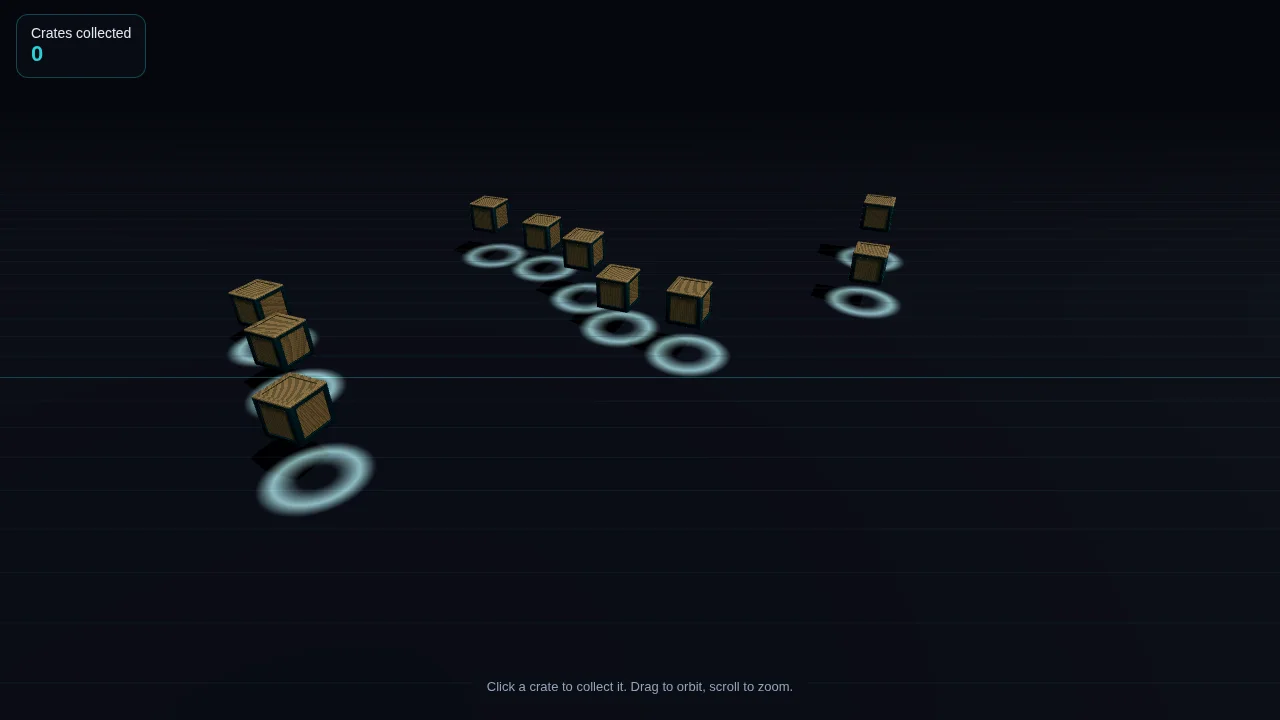
A little Three.js game built around the Blender crate from this tutorial: crates spawn on glowing rings, bob and spin, and burst into sparks when you click or tap them.
Free Google sign-in. No membership needed.
How do you get a Blender model into Three.js? (Quick Answer)
Model and texture it in Blender with Principled BSDF materials, then use File › Export › glTF 2.0 and save a .glb file. In Three.js, import GLTFLoader from three/addons/loaders/GLTFLoader.js, call loader.load('model.glb', gltf => scene.add(gltf.scene)), and add lights so the PBR materials show. Serve the page from a local web server, not file://, or the browser blocks the load.
Introduction
The 2023 version of this page explained why Blender and Three.js work well together. This version shows how, start to finish, with a model small enough to build in a coffee break and a game loop that uses it.
Blender is free and exports glTF 2.0, the format Three.js is built around. Mesh, materials, names, and even animations come across in one file. The same pipeline brings the soldiers, guns and gunships into Super Soldier Battle.
Already have a rigged character? Jump to Load and Control a Rigged Character. New to Three.js? Start with Programming 3D Games With Three.js.
Key Concepts
- glTF 2.0 / GLB — the "JPEG of 3D". .glb is one binary file; .gltf is JSON that can embed or reference its data. Three.js loads both.
- Principled BSDF to MeshStandardMaterial — base color, metallic, roughness and normal maps export directly. Fancy shader nodes do not, so bake them to textures.
- Units and scale — one Blender unit is one meter and one Three.js unit. Apply scale (Ctrl + A) before export to avoid surprises.
- Low poly for the web — every triangle is downloaded and drawn on phones. A prop like this crate needs hundreds, not thousands.
- GLTFLoader — the Three.js addon that turns the file into a scene graph. gltf.scene is a Group you can add, clone and move.
- Cloning — object.clone() reuses geometry and materials, so ten crates cost one download and almost no extra memory.
- Raycaster — shoots a ray from the camera through the pointer to find which crate was clicked or tapped.
Part 1: Make the Model in Blender
These are real Blender 4.2 LTS screenshots of the crate used in the live demo. Shortcuts are for the default keymap.
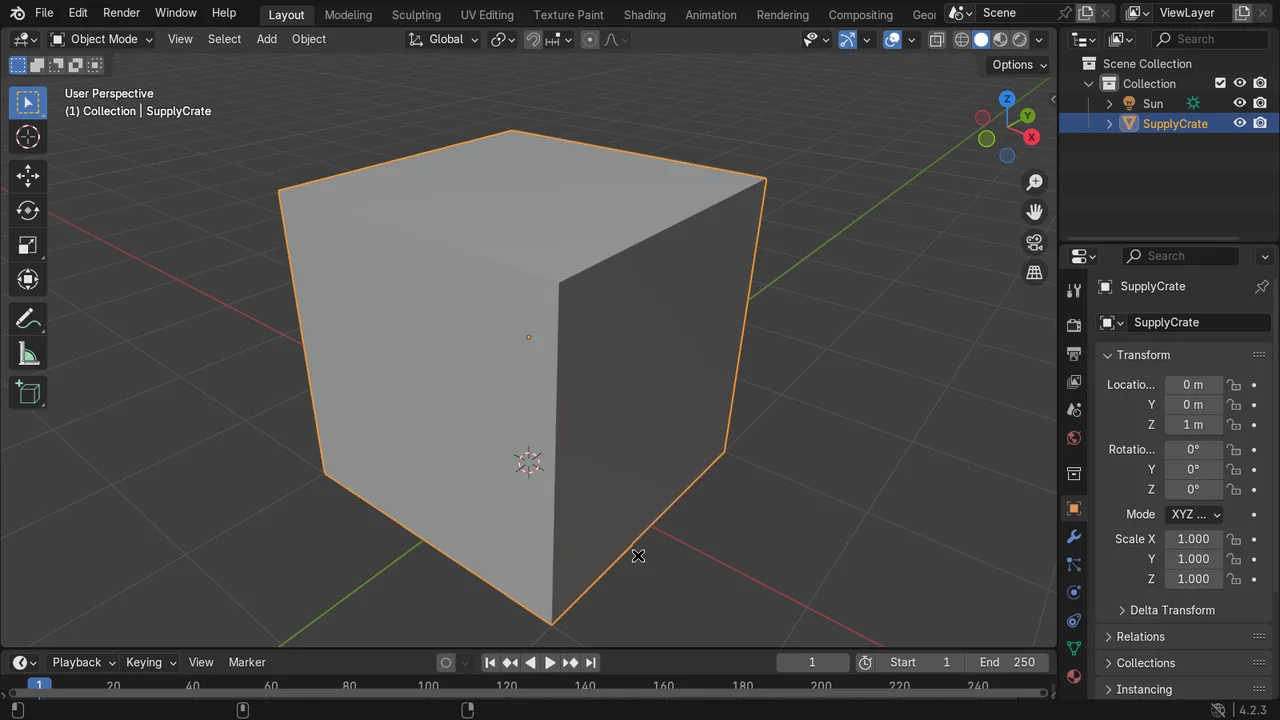
Shift + A › Mesh › Cube) and rename it SupplyCrate in the Outliner. Names carry into Three.js, so you can find the mesh later with getObjectByName.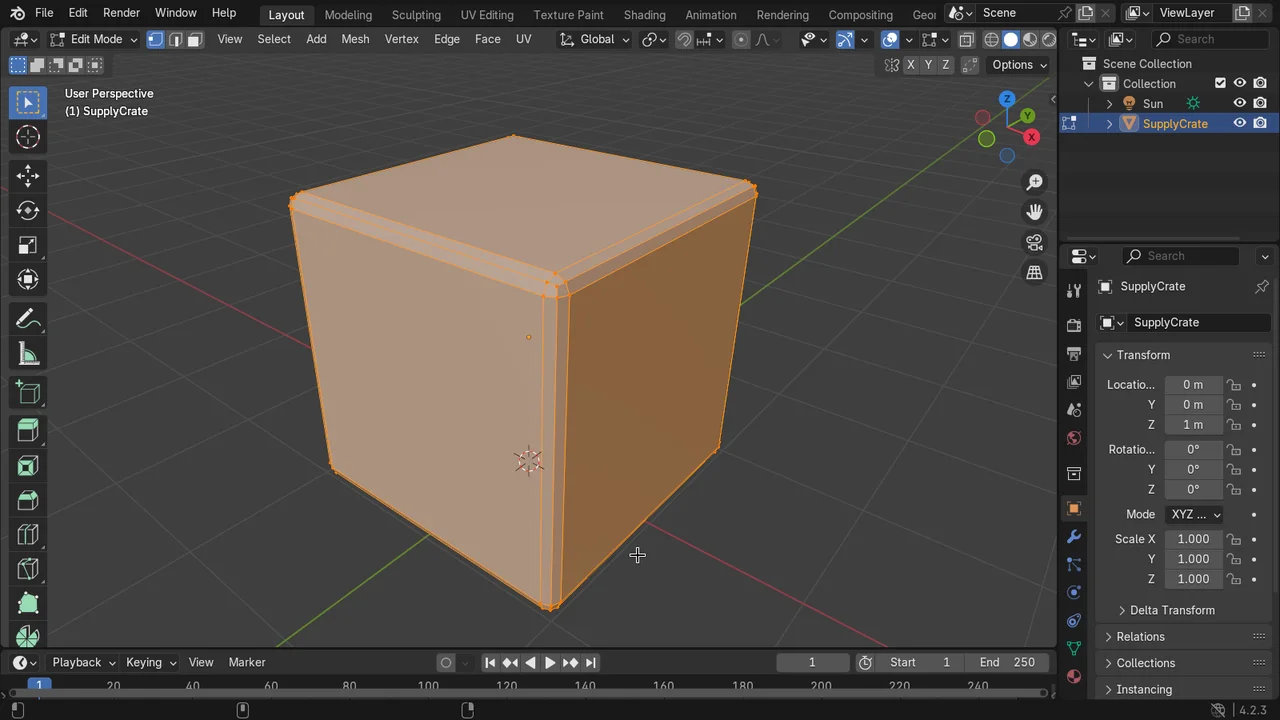
Tab for Edit Mode, A to select all, then Ctrl + B to bevel. Drag a little, scroll for 2 segments. Rounded edges catch light and stop the crate looking like a plain box.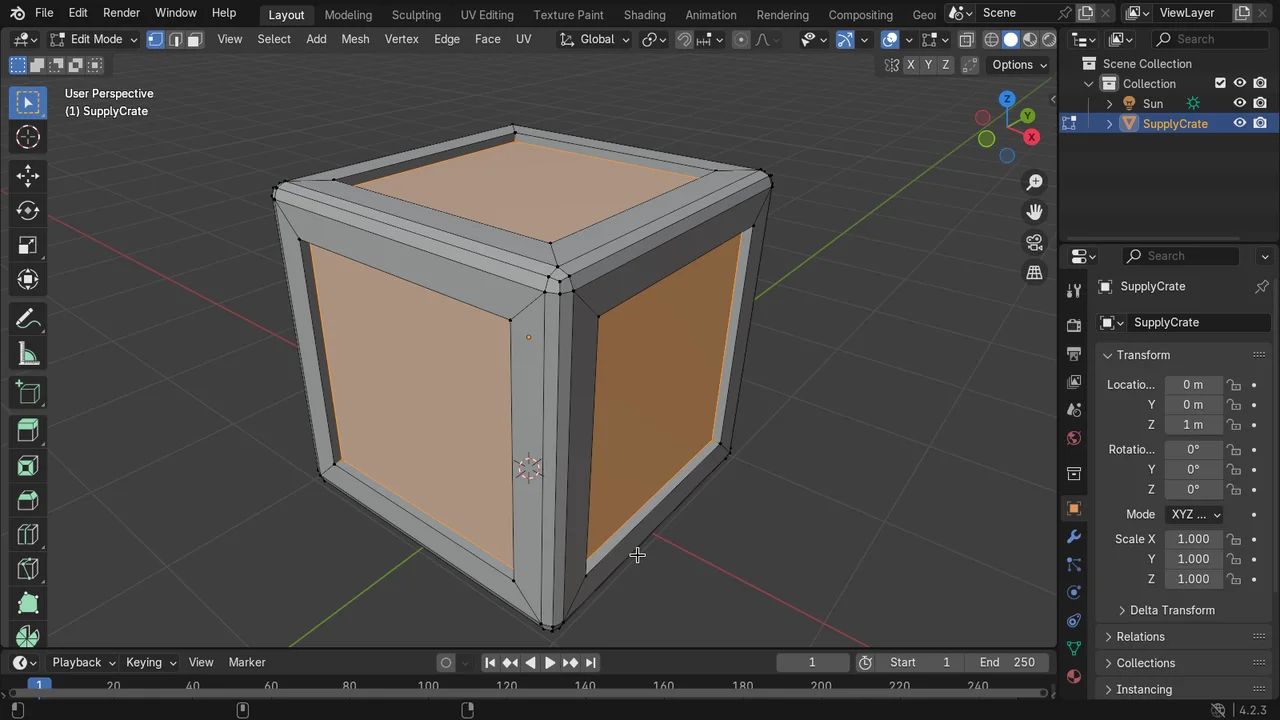
I to inset a border, then I again with depth (or E and drag in) to push the panels back. That is the whole model: about 150 faces, perfect for a web game.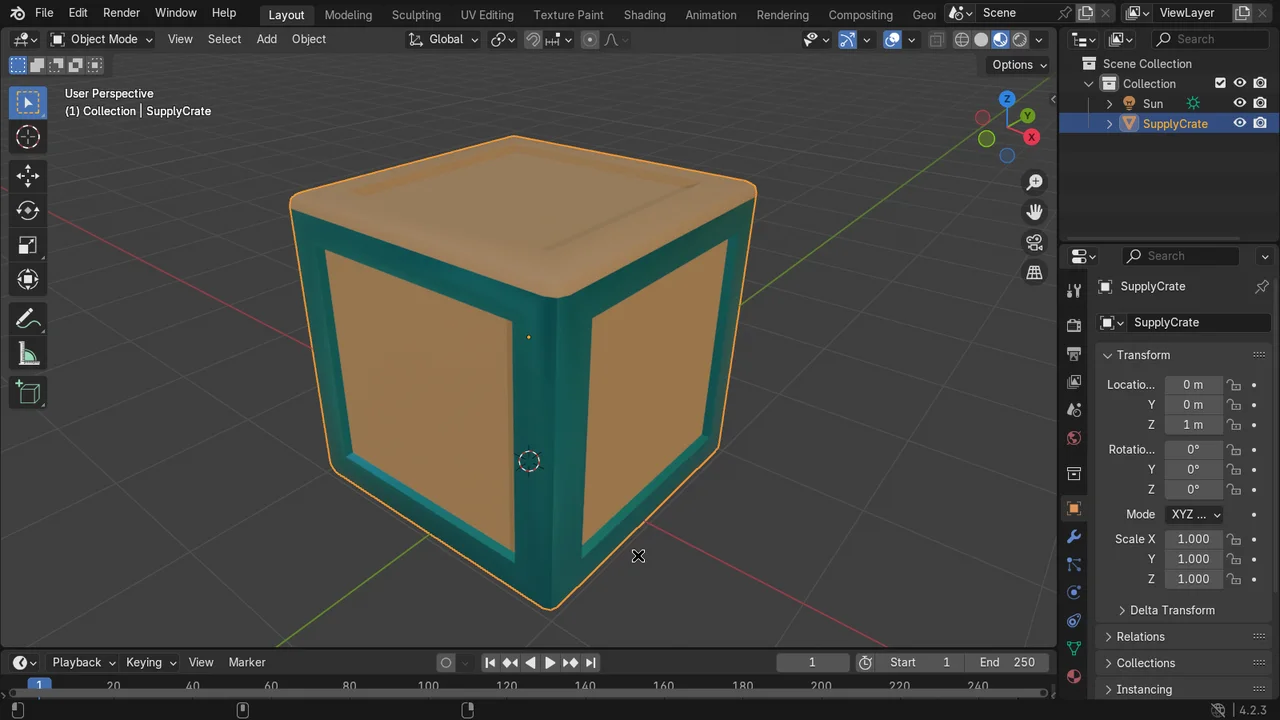
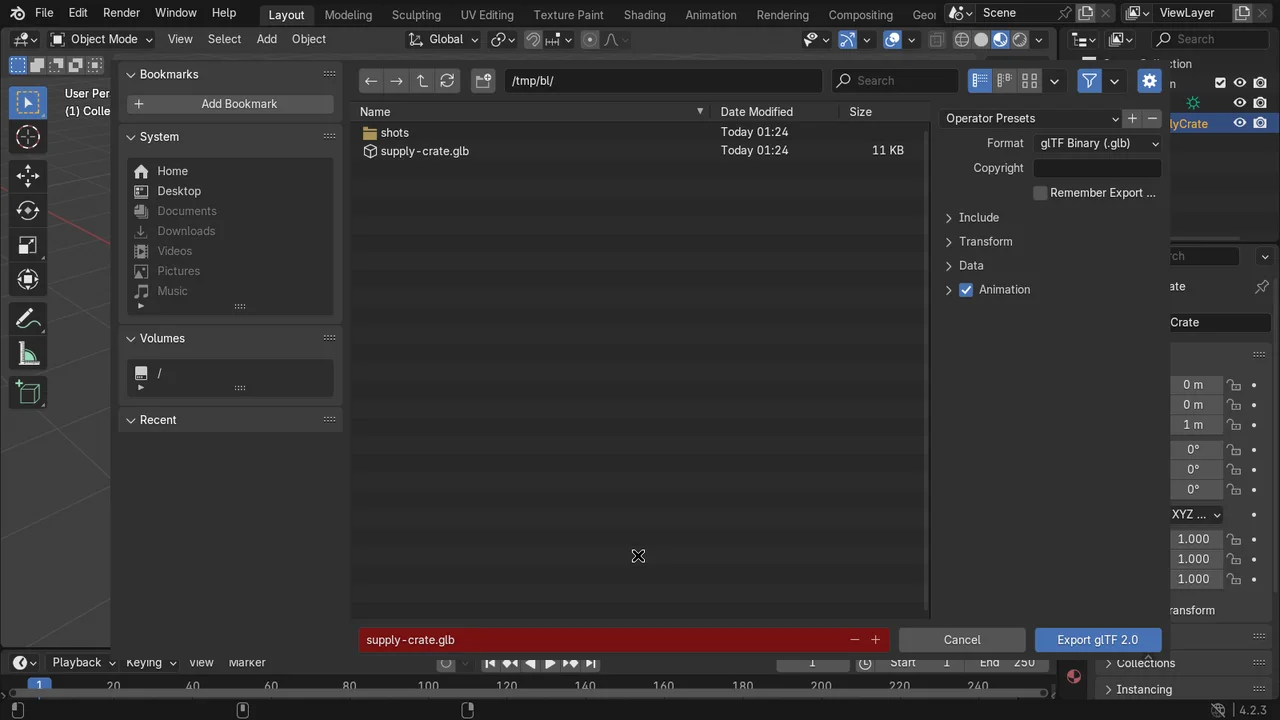
Blender Export Settings That Matter
| Setting | Use | Why |
|---|---|---|
| Format | glTF Binary (.glb) | One file, smallest, fastest to load |
| Include › Selected Objects | On for single props | Keeps lights and cameras out of the file |
| Transform › +Y Up | On (default) | Blender is Z-up, Three.js is Y-up; the exporter converts |
| Data › Mesh › Apply Modifiers | On | Bevel and mirror modifiers are baked into the mesh |
| Data › Compression (Draco) | On for big models | Much smaller files; needs DRACOLoader in Three.js |
| Animation | On for rigs | Actions export as clips for AnimationMixer |
Frequently Asked Questions
How do I export a Blender model for Three.js?
Use File > Export > glTF 2.0 and choose glTF Binary (.glb). Keep +Y Up on, apply modifiers, and use Principled BSDF materials so colors, metalness and roughness carry over.
Should I use .glb or .gltf with Three.js?
Use .glb for most projects because it is one compact binary file. .gltf is readable JSON and handy for debugging. GLTFLoader loads both the same way.
Why is my Blender model black in Three.js?
There are no lights, or the material uses Blender-only shader nodes. Add a HemisphereLight and DirectionalLight, and bake procedural materials to image textures before export.
Why is my model the wrong size or rotated?
Apply scale and rotation in Blender with Ctrl + A before exporting, and keep the +Y Up export option on. One Blender unit equals one Three.js unit.
Why does GLTFLoader fail when I open the HTML file directly?
Browsers block loading files from file:// pages. Run a local server such as npx serve or python -m http.server and open the http:// address.
How many polygons should a web game model have?
Props like crates work well with a few hundred triangles, and characters with roughly 5,000 to 20,000. Use Draco compression and texture atlases for larger scenes.
Can I export animations from Blender to Three.js?
Yes. Actions export as glTF animations. Play them with THREE.AnimationMixer and gltf.animations, as shown in the rigged character tutorial.
How It Works
- Model a simple crate in Blender — In plain words: Start from the default cube, bevel the edges, and inset and push in panels on each face.
- Add PBR materials — In plain words: Two Principled BSDF materials, wood and metal trim, map directly to Three.js MeshStandardMaterial.
- Export as glTF 2.0 — In plain words: File > Export > glTF 2.0, glTF Binary, Apply Modifiers on. The crate is about 11 KB.
- Set up the Three.js scene — In plain words: Renderer with shadows, a camera, orbit controls, a hemisphere light, a shadow-casting sun and a grid floor.
- Load the model with GLTFLoader — In plain words: loader.load gives us gltf.scene. We scale it, turn on shadows for every mesh and keep it as a template.
- Clone it into game pickups — In plain words: Each pickup is a clone of the crate plus a glowing ring, placed at random. Clones share geometry and materials.
- Click or tap to collect — In plain words: A Raycaster finds the crate under the pointer, ignoring drags. Collected crates burst and a new one spawns.
- Animate the game loop — In plain words: Every frame crates spin and bob, the rings pulse, and burst particles fall with gravity and fade out.
Code Breakdown
The important pieces of the demo, one at a time. The full file is below.
import { GLTFLoader } from 'three/addons/loaders/GLTFLoader.js';

new GLTFLoader().load('/models/supply-crate.glb', (gltf) => {
  template = gltf.scene;
  template.scale.setScalar(0.45);                    // 2 m crate -> pickup size
  template.traverse((o) => {
    if (o.isMesh) { o.castShadow = true; o.receiveShadow = true; }
  });
  for (let i = 0; i < 10; i++) spawn();
});function spawn() {
const group = new THREE.Group();
const crate = template.clone(true); // shares geometry + materials
crate.position.y = 1;
group.add(crate, makeGlowRing());
group.position.set((Math.random() - 0.5) * 22, 0, (Math.random() - 0.5) * 16);
scene.add(group); pickups.push(group);
}ndc.set((e.clientX / innerWidth) * 2 - 1, -(e.clientY / innerHeight) * 2 + 1);
ray.setFromCamera(ndc, camera);
const hit = ray.intersectObjects(pickups.map(p => p.userData.crate), true)[0];
if (hit) collect(findPickup(hit.object));The Full Code
Save as index.html, export your own model from Blender, change MODEL_URL to its path and open the page through a local web server, or hit Launch. Copy and Launch use the same free sign-in as the live demo.
<!DOCTYPE html>
<html lang="en">
<head>
<meta charset="utf-8">
<meta name="viewport" content="width=device-width, initial-scale=1">
<title>Blender Model in a Three.js Game: Supply Crate Pickups</title>
<style>
  html, body { margin: 0; height: 100%; overflow: hidden; background: #05070d; font-family: Arial, sans-serif; color: #e2e8f0; }
  canvas { display: block; touch-action: none; }
  #hud { position: fixed; left: 16px; top: 14px; padding: 10px 14px; background: rgba(10,14,22,.8); border: 1px solid rgba(42,209,214,.3); border-radius: 12px; font-size: 14px; pointer-events: none; }
  #hud b { color: #2ad1d6; font-size: 22px; }
  #msg { position: fixed; left: 50%; bottom: 18px; transform: translateX(-50%); padding: 8px 14px; background: rgba(10,14,22,.8); border-radius: 10px; font-size: 13px; color: #93a4b8; pointer-events: none; text-align: center; }
</style>
<script type="importmap">
{ "imports": { "three": "https://unpkg.com/three@0.160.0/build/three.module.js", "three/addons/": "https://unpkg.com/three@0.160.0/examples/jsm/" } }
</script>
</head>
<body>
<div id="hud">Crates collected<br><b id="score">0</b></div>
<div id="msg">Loading the Blender model...</div>
<script type="module">
import * as THREE from 'three';
import { OrbitControls } from 'three/addons/controls/OrbitControls.js';
import { GLTFLoader } from 'three/addons/loaders/GLTFLoader.js';

// ---------- 1. Renderer, scene, camera ----------
const isMobile = Math.min(innerWidth, innerHeight) < 600 || matchMedia('(pointer: coarse)').matches;
const renderer = new THREE.WebGLRenderer({ antialias: !isMobile });
renderer.setPixelRatio(Math.min(devicePixelRatio, isMobile ? 1.5 : 2));
renderer.setSize(innerWidth, innerHeight);
renderer.shadowMap.enabled = true;
renderer.toneMapping = THREE.ACESFilmicToneMapping;
document.body.appendChild(renderer.domElement);

const scene = new THREE.Scene();
scene.background = new THREE.Color(0x05070d);
scene.fog = new THREE.Fog(0x05070d, 18, 45);
const camera = new THREE.PerspectiveCamera(55, innerWidth / innerHeight, 0.1, 200);
camera.position.set(0, 9, isMobile ? 18 : 14);
const controls = new OrbitControls(camera, renderer.domElement);
controls.enableDamping = true; controls.target.set(0, 0.5, 0);
controls.maxPolarAngle = Math.PI * 0.47; controls.minDistance = 6; controls.maxDistance = 30;

// ---------- 2. Lights and floor ----------
scene.add(new THREE.HemisphereLight(0x9ad7ff, 0x1a1208, 0.8));
const sun = new THREE.DirectionalLight(0xffffff, 2.2);
sun.position.set(6, 12, 5); sun.castShadow = true;
sun.shadow.mapSize.set(isMobile ? 1024 : 2048, isMobile ? 1024 : 2048);
Object.assign(sun.shadow.camera, { left: -14, right: 14, top: 14, bottom: -14 });
scene.add(sun);
const floor = new THREE.Mesh(new THREE.PlaneGeometry(80, 80), new THREE.MeshStandardMaterial({ color: 0x0c1220, roughness: 0.9 }));
floor.rotation.x = -Math.PI / 2; floor.receiveShadow = true; scene.add(floor);
const grid = new THREE.GridHelper(80, 80, 0x2ad1d6, 0x14324a);
grid.material.transparent = true; grid.material.opacity = 0.3; grid.position.y = 0.01; scene.add(grid);

// ---------- 3. Load the model exported from Blender ----------
// Change this path to your own .glb or .gltf file from File > Export > glTF 2.0.
const MODEL_URL = '/tutorials/assets/blender-supply-crate.gltf';
const pickups = [];
let template = null;

function glowRingTexture() {
  const c = document.createElement('canvas'); c.width = c.height = 128;
  const g = c.getContext('2d'), r = g.createRadialGradient(64, 64, 20, 64, 64, 64);
  r.addColorStop(0, 'rgba(42,209,214,0)'); r.addColorStop(0.6, 'rgba(42,209,214,0.9)'); r.addColorStop(1, 'rgba(42,209,214,0)');
  g.fillStyle = r; g.fillRect(0, 0, 128, 128); return new THREE.CanvasTexture(c);
}
const ringMat = new THREE.MeshBasicMaterial({ map: glowRingTexture(), transparent: true, blending: THREE.AdditiveBlending, depthWrite: false });

new GLTFLoader().load(MODEL_URL, (gltf) => {
  template = gltf.scene;
  // Blender units are meters, so the 2 m crate is scaled down for pickups.
  template.scale.setScalar(0.45);
  template.traverse((o) => { if (o.isMesh) { o.castShadow = true; o.receiveShadow = true; } });
  for (let i = 0; i < 10; i++) spawn();
  document.getElementById('msg').textContent = isMobile ? 'Tap a crate to collect it. Drag to orbit.' : 'Click a crate to collect it. Drag to orbit, scroll to zoom.';
}, undefined, (err) => { document.getElementById('msg').textContent = 'Could not load ' + MODEL_URL; console.error(err); });

// ---------- 4. Spawn clones of the crate as game pickups ----------
function spawn() {
  const group = new THREE.Group();
  const crate = template.clone(true);             // clone shares geometry and materials
  crate.position.y = 1;
  group.add(crate);
  const ring = new THREE.Mesh(new THREE.PlaneGeometry(2.2, 2.2), ringMat);
  ring.rotation.x = -Math.PI / 2; ring.position.y = 0.03; group.add(ring);
  group.position.set((Math.random() - 0.5) * 22, 0, (Math.random() - 0.5) * 16);
  group.userData = { crate, phase: Math.random() * 6.28, born: clock.elapsedTime };
  group.scale.setScalar(0.01);
  scene.add(group); pickups.push(group);
}

// ---------- 5. Click or tap to collect (Raycaster) ----------
const ray = new THREE.Raycaster(), ndc = new THREE.Vector2();
let downAt = null;
renderer.domElement.addEventListener('pointerdown', (e) => { downAt = [e.clientX, e.clientY]; });
renderer.domElement.addEventListener('pointerup', (e) => {
  if (!downAt || Math.hypot(e.clientX - downAt[0], e.clientY - downAt[1]) > 8) return; // it was a drag
  ndc.set((e.clientX / innerWidth) * 2 - 1, -(e.clientY / innerHeight) * 2 + 1);
  ray.setFromCamera(ndc, camera);
  const hit = ray.intersectObjects(pickups.map((p) => p.userData.crate), true)[0];
  if (!hit) return;
  const group = pickups.find((p) => { let o = hit.object; while (o) { if (o === p) return true; o = o.parent; } return false; });
  collect(group);
});
let score = 0;
function collect(group) {
  burst(group.position);
  scene.remove(group); pickups.splice(pickups.indexOf(group), 1);
  document.getElementById('score').textContent = ++score;
  setTimeout(spawn, 700);
}

// ---------- 6. Particle burst VFX ----------
const bursts = [];
function burst(at) {
  const n = 80, pos = new Float32Array(n * 3), vel = [];
  for (let i = 0; i < n; i++) {
    pos[i * 3] = at.x; pos[i * 3 + 1] = 1; pos[i * 3 + 2] = at.z;
    vel.push(new THREE.Vector3((Math.random() - 0.5) * 6, Math.random() * 7 + 2, (Math.random() - 0.5) * 6));
  }
  const geo = new THREE.BufferGeometry(); geo.setAttribute('position', new THREE.BufferAttribute(pos, 3));
  const pts = new THREE.Points(geo, new THREE.PointsMaterial({ color: 0xffc04d, size: 0.18, transparent: true, blending: THREE.AdditiveBlending, depthWrite: false }));
  scene.add(pts); bursts.push({ pts, vel, life: 1 });
}

// ---------- 7. Game loop ----------
const clock = new THREE.Clock();
function animate() {
  requestAnimationFrame(animate);
  const dt = Math.min(clock.getDelta(), 0.05), t = clock.elapsedTime;
  for (const p of pickups) {
    const u = p.userData, grow = Math.min(1, (t - u.born) * 3);
    p.scale.setScalar(grow);
    u.crate.rotation.y += dt * 0.9;
    u.crate.position.y = 1 + Math.sin(t * 2 + u.phase) * 0.25;
  }
  for (let i = bursts.length - 1; i >= 0; i--) {
    const b = bursts[i], a = b.pts.geometry.attributes.position.array;
    b.life -= dt;
    b.vel.forEach((v, k) => { v.y -= 12 * dt; a[k * 3] += v.x * dt; a[k * 3 + 1] += v.y * dt; a[k * 3 + 2] += v.z * dt; });
    b.pts.geometry.attributes.position.needsUpdate = true;
    b.pts.material.opacity = Math.max(0, b.life);
    if (b.life <= 0) { scene.remove(b.pts); b.pts.geometry.dispose(); bursts.splice(i, 1); }
  }
  ringMat.opacity = 0.6 + Math.sin(t * 3) * 0.3;
  controls.update();
  renderer.render(scene, camera);
}
animate();
addEventListener('resize', () => { camera.aspect = innerWidth / innerHeight; camera.updateProjectionMatrix(); renderer.setSize(innerWidth, innerHeight); });
</script>
</body>
</html>
Taking It Further
- Bring in a rigged, animated soldier: Load and Control a Rigged Character
- Make the crates collectible in first person with Three.js FPS Controls
- Add fire and sparks with the fire fountain particle system
- Ship your game with AWS and GitHub, the Super Soldier Battle way