3D PARTICLE
BLAST EFFECT
Build a click-to-fire explosion of glowing particles in the browser with Three.js — each one flies out with its own velocity, casts a flash of light, then fades away.

LIVE DEMO
Click anywhere on the background to fire a blast of glowing particles. Drag to orbit the camera around the grid. The whole effect is running live behind this page.
Hides the page so you get the scene full screen — click anywhere to blast, press Esc to exit. A free one-click Google sign-in unlocks it.
NEW FREE THREE.JS TUTORIAL
Want a bigger explosion? Build a 3D rockfire explosion in Three.js — flying debris, fire, smoke, a shockwave, and a scorch crater that grows with the blast. The whole effect in one copy-paste file, with a live demo you can orbit.
See the Rockfire Explosion Tutorial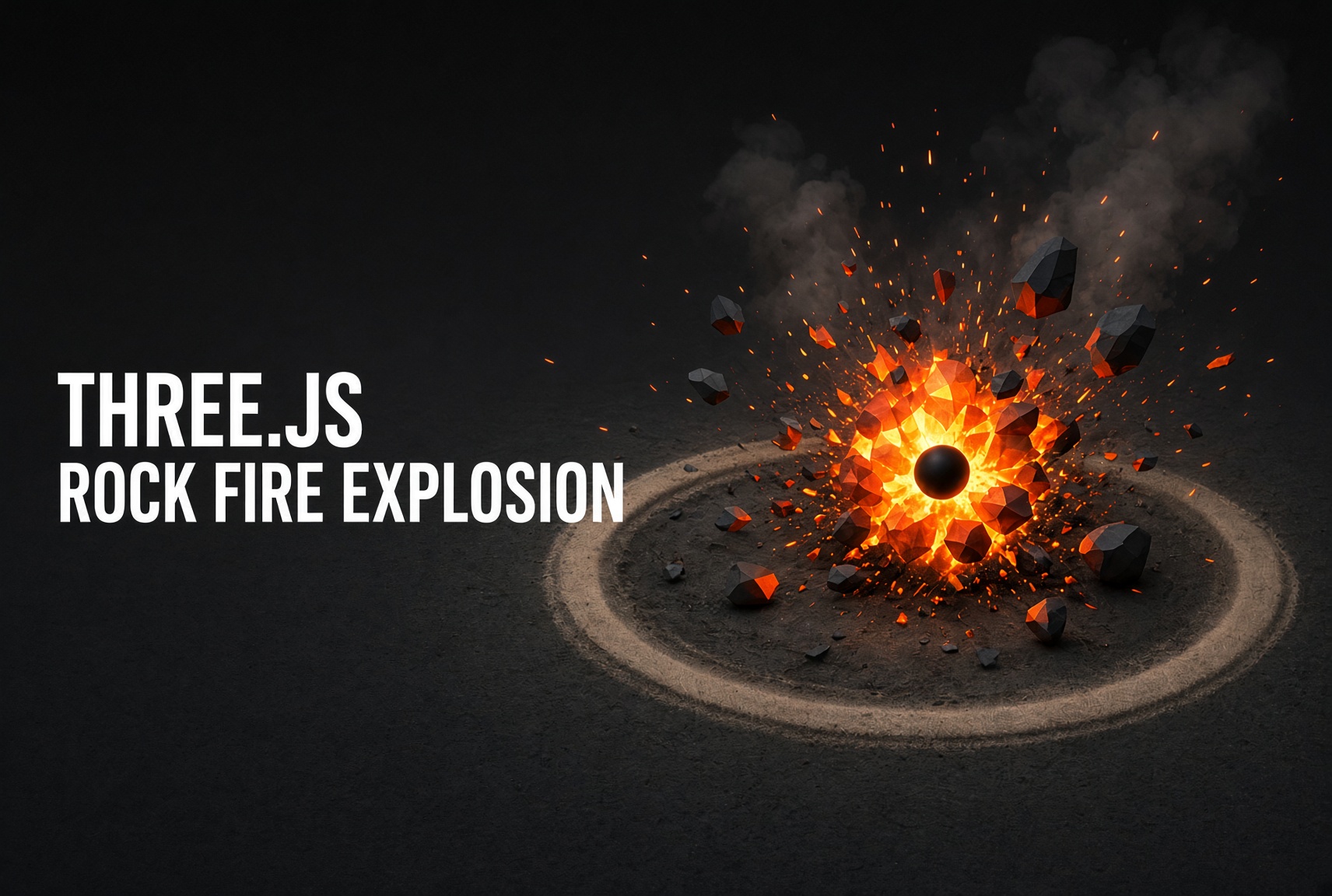
Introduction
A blast effect is the quickest way to make a 3D scene feel alive and game-like. The idea is simple: when the user clicks, spawn a burst of small glowing spheres at that point, give each a random outward velocity, and let them fly apart. Add a quick point-light flash for the "boom," then remove each particle after a short lifespan so the scene stays fast.
This free tutorial builds exactly that — an interactive, click-to-fire particle explosion with Three.js. It's the same technique you'd use for muzzle flashes, impacts, pickups, or spell effects in a browser game.
Frequently Asked Questions
How do you make an explosion effect in Three.js?
Spawn a burst of small meshes at the blast origin, each with a random outward velocity. Move them along their velocity every frame, add a point light for a glow flash, and remove each particle after a short lifespan. Firing the burst on a mouse click gives you an interactive explosion.
How do you fire particles from where the user clicks?
Convert the 2D mouse coordinates to a 3D point by building a normalized device vector and calling vector.unproject(camera). Cast from the camera through that point onto a plane to get the world-space origin, then spawn the particle burst there.
How do you clean up blast particles so they don't slow the scene?
Give each particle a lifespan. Use a timer to remove the mesh and its light from the scene after a couple of seconds, and splice it out of your tracking array. Also remove particles once they travel past a distance limit. This keeps the particle count bounded and the frame rate smooth.
Is this Three.js blast effect tutorial free?
Yes. This is a completely free tutorial. There is a live click-to-blast demo running in the background, and the full source code is on the page to copy. A free one-click Google sign-in unlocks the code block, and the same sign-in unlocks every free tutorial on the site — no payment or membership required.
Code Breakdown
Here is the whole blast effect, one piece at a time. Beginners: read the bold summaries. Developers: the notes after each block explain the why. It uses OrbitControls from the Three.js addons, so it runs as an ES module with an import map.
1. The HTML shell + import map
<script async src="https://unpkg.com/es-module-shims@1.3.6/dist/es-module-shims.js"></script>
<script type="importmap">
  { "imports": { "three": "./build/three.module.js", "three/addons/": "./jsm/" } }
</script>

<script type="module">
  import * as THREE from 'three';
  import { OrbitControls } from 'three/addons/controls/OrbitControls.js';
</script>
In plain English: the import map lets you write import ... from 'three' with no build step. Developer note: es-module-shims adds import-map support for browsers that need it, and three/addons/ maps to the Three.js examples/jsm folder where OrbitControls lives.
2. Scene, camera, renderer & a grid
const scene = new THREE.Scene();
const camera = new THREE.PerspectiveCamera(75, innerWidth / innerHeight, 0.1, 1000);
camera.position.set(6, 4, 6);

const renderer = new THREE.WebGLRenderer({ antialias: true });
renderer.setPixelRatio(window.devicePixelRatio);
renderer.setSize(innerWidth, innerHeight);
renderer.setClearColor(0x000000, 1);
document.body.appendChild(renderer.domElement);

scene.add(new THREE.GridHelper(100, 150));
In plain English: the three things every Three.js scene needs — a scene to hold objects, a camera to view it, and a renderer to draw it — plus a floor grid so you can see depth and where the blast lands. Developer note: the camera sits back at (6, 4, 6) so more of the grid and each burst is in frame.
3. OrbitControls to look around
const controls = new OrbitControls(camera, renderer.domElement);
controls.enableZoom = false; // let the mouse wheel scroll the page
controls.enablePan = false;
In plain English: drag to orbit the camera around the blast. Developer note: zoom and pan are turned OFF so the mouse wheel keeps scrolling the page instead of zooming the scene — important when the demo is a background on a scrollable tutorial.
4. Turn a click into a 3D world point
const raycaster = new THREE.Raycaster();
const groundPlane = new THREE.Plane(new THREE.Vector3(0, 1, 0), 0);
const ndc = new THREE.Vector2();

function getClickedPoint(clientX, clientY) {
  ndc.x = (clientX / window.innerWidth) * 2 - 1;
  ndc.y = -(clientY / window.innerHeight) * 2 + 1;
  raycaster.setFromCamera(ndc, camera);
  const hit = new THREE.Vector3();
  if (raycaster.ray.intersectPlane(groundPlane, hit)) return hit;
  // Fallback: a point in front of the camera if the ray misses the ground.
  return raycaster.ray.origin.clone().add(raycaster.ray.direction.clone().multiplyScalar(30));
}
In plain English: a mouse click is a 2D screen point, but the blast needs a 3D world point. We shoot a ray from the camera through the click and find where it crosses the ground. Developer note: the click is first converted to normalized device coordinates (-1..1), then intersectPlane finds the hit on the y = 0 plane. If the ray misses (clicking the sky), we fall back to a point 30 units down the ray so a blast always appears.
5. fireBlast() — flash + a burst of embers
const particles = [];

function fireBlast(origin) {
  // Bright flash of light at the blast center
  const light = new THREE.PointLight(0xffaa33, 40, 120);
  light.position.copy(origin);
  scene.add(light);
  setTimeout(() => scene.remove(light), 350);

  for (let i = 0; i < 120; i++) {
    const hue = THREE.MathUtils.randFloat(0.05, 0.14); // orange -> yellow
    const mesh = new THREE.Mesh(
      new THREE.SphereGeometry(THREE.MathUtils.randFloat(0.15, 0.4), 10, 10),
      new THREE.MeshBasicMaterial({ color: new THREE.Color().setHSL(hue, 1, 0.6) })
    );
    mesh.position.copy(origin);

    const dir = new THREE.Vector3(
      THREE.MathUtils.randFloat(-1, 1),
      THREE.MathUtils.randFloat(-1, 1),
      THREE.MathUtils.randFloat(-1, 1)
    ).normalize();
    const velocity = dir.multiplyScalar(THREE.MathUtils.randFloat(0.4, 1.1));

    scene.add(mesh);
    const p = { mesh, velocity };
    particles.push(p);

    // Remove each ember after its short lifespan.
    setTimeout(() => {
      scene.remove(mesh);
      const idx = particles.indexOf(p);
      if (idx !== -1) particles.splice(idx, 1);
    }, 1400);
  }
}
In plain English: the explosion itself — a quick point-light flash for the "boom," then 120 small glowing spheres spawned at the origin, each shot off in a random direction at a random speed. Developer note: every ember gets a normalized random direction multiplied by a random speed to make the velocity, and a setTimeout removes it (and splices it from the tracking array) after 1.4s so the particle count stays bounded and the frame rate stays smooth.
6. Fire on click, keep it responsive on resize
// Capture-phase pointerdown so the blast fires even though OrbitControls
// also listens; window-level so a click anywhere counts.
window.addEventListener('pointerdown', (e) => {
  fireBlast(getClickedPoint(e.clientX, e.clientY));
}, true);

addEventListener('resize', () => {
  camera.aspect = innerWidth / innerHeight;
  camera.updateProjectionMatrix();
  renderer.setSize(innerWidth, innerHeight);
});
In plain English: any click fires a blast where you clicked, and the scene always matches the window size. Developer note: the listener uses the capture phase (the true third argument) so it runs before OrbitControls, which otherwise swallows the pointerdown.
7. The animation loop — move, fade, render
function animate() {
  requestAnimationFrame(animate);
  for (const p of particles) {
    p.mesh.position.add(p.velocity);
    p.velocity.y -= 0.012;               // gravity
    p.velocity.multiplyScalar(0.96);     // drag
    p.mesh.scale.multiplyScalar(0.975);  // shrink / fade
  }
  controls.update();
  renderer.render(scene, camera);
}
animate();
In plain English: every frame, each ember moves along its velocity, gets pulled down by gravity, slows from drag, and shrinks as it dies — then the whole scene is drawn. Developer note: subtracting from velocity.y makes the embers arc and fall, and multiplying by 0.96 each frame is a cheap exponential drag so the burst settles instead of flying forever.
What To Try Next
- Randomize each particle's
colorfor a firework instead of a single hue. - Add gravity — subtract a little from
velocity.yeach frame so particles arc and fall. - Fade particles out by lowering material
opacityover their lifespan. - Swap spheres for a sprite texture (a soft glow PNG) for a smoky look.
- Trigger the blast from game events (a hit, a pickup) instead of only clicks.
SEE 3D AND 2D BROWSER GAMES IN ACTION
Built with Three.js and JavaScript — free, no download, plays right in your browser.
Super Soldier Battle
Free 3D multiplayer FPS built with Three.js and WebGL. Destroy the enemy bots and turrets, climb the leaderboard.
Play now →
AI Tic-Tac-Toe
Play the classic game against an AI opponent right in your browser. Free, no download, with an online leaderboard.
Play now →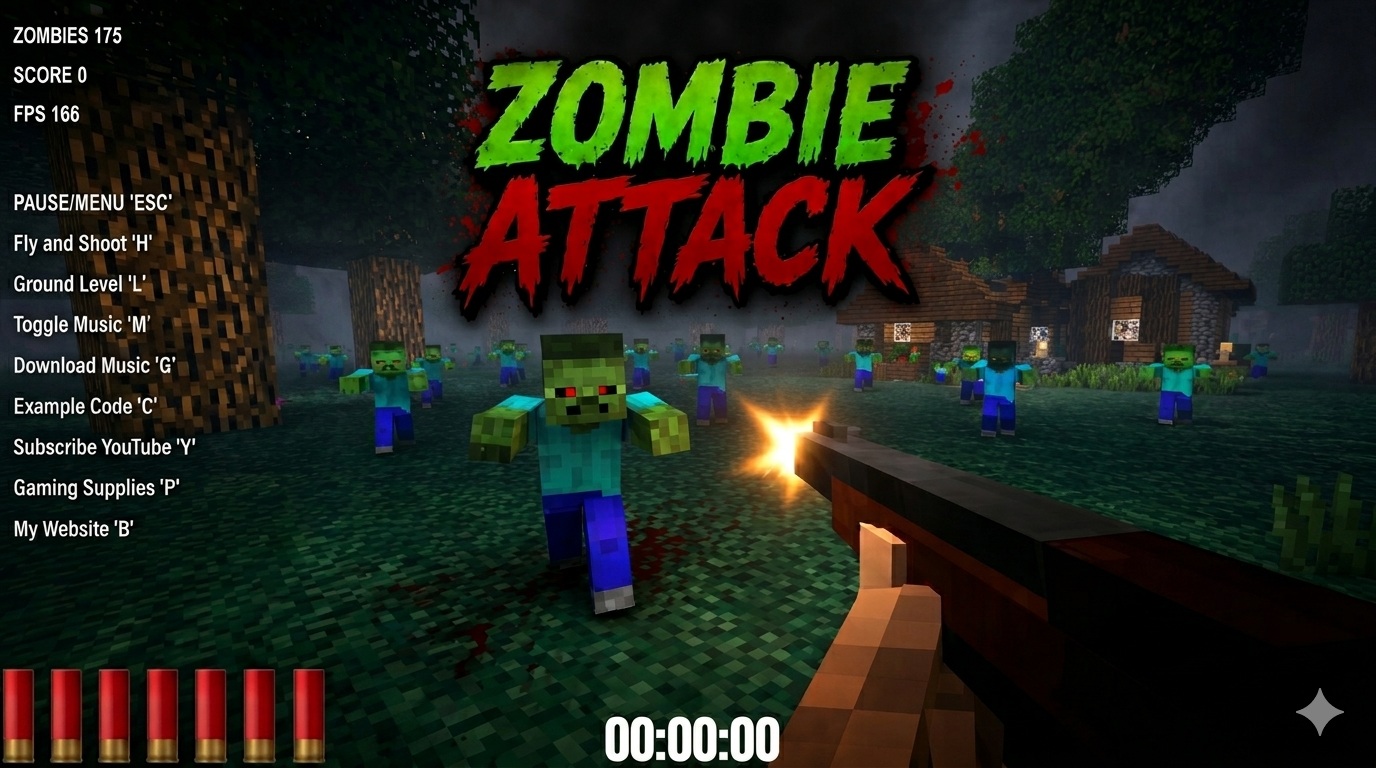
Zombie Attack
Survive waves of zombies in this free 3D browser shooter built with Three.js. No download, plays instantly.
Play now →
Space Wow
Blast through space in this free 3D Three.js arcade shooter. Free, no download, plays right in your browser.
Play now →