HOW TO PROGRAM A
3D MENU IN THREE.JS
By Shane Brumback · · Free Three.js tutorial
A 3D menu in Three.js is a ring of textured image panels placed evenly around a circle, all facing the center, that you orbit with the mouse and click to navigate. A Raycaster turns a click on a panel into a page jump, and a slow auto-spin keeps it alive. This free tutorial builds the whole thing in one copy-paste file.
Instead of a flat list of links, your navigation becomes a carousel you can look around — drag to orbit, click a panel to go there. Click and drag the demo behind this page, then copy the code and make it your own.

LIVE DEMO
The slowly spinning scene behind this page is the live demo. Press the button to go full screen — the page UI hides so you can click and drag to orbit the menu and click a panel to open it.
Hides the page so you get the scene full screen — drag to orbit, click a panel, press Esc to exit.
Introduction
A flat navigation bar tells people where they can go. A 3D menu lets them feel it — the links become panels floating in space that you can orbit around and click to travel. It is one of the fastest ways to make a site feel like an experience instead of a page, and the surprising part is how little code it takes.
The trick is simple geometry. Each menu item is a flat PlaneGeometry with an image painted on it. We place those planes evenly around a circle so they form a ring, turn each one to face the middle, and drop the camera inside. OrbitControls lets the visitor look around, a Raycaster figures out which panel they clicked, and a slow spin on the whole scene keeps it from feeling static.
What you should know first: this is a beginner-friendly build. If you have ever made a Three.js scene with a renderer, a camera, and a mesh in a render loop, you are ready. If that is brand new, skim Creating and Animating Simple 3D Objects first. No build tools — everything loads from a CDN.
Frequently Asked Questions
How do I create a 3D menu using Three.js?
Make one textured plane for each menu item, place the planes evenly around a circle so they form a ring, and point each one at the center. Add OrbitControls so the user can look around the ring, and a Raycaster so a click on a panel reads its stored link and navigates there. A slow rotation on the scene gives it life. In Three.js that is a TextureLoader, a PlaneGeometry per item, OrbitControls, and a Raycaster — no framework needed.
How do I detect clicks on 3D objects for menu interaction?
Convert the mouse position to normalized device coordinates (-1 to 1 on each axis), call raycaster.setFromCamera(mouse, camera) to shoot a ray into the scene, then raycaster.intersectObjects(panels). The first intersection is the panel the user clicked, so you read its userData and act on it. Listen on mousedown or pointerdown.
How do I put images on 3D menu items in Three.js?
Load each image with THREE.TextureLoader().load(url), set texture.colorSpace = THREE.SRGBColorSpace so colors look right, and apply it as the map of a MeshBasicMaterial on a PlaneGeometry. MeshBasicMaterial ignores lighting, so the panels show the image at full brightness like a screen.
How do I arrange menu items in a ring in Three.js?
Split a full circle into equal slices (angle = 2*Math.PI / itemCount), then for item i set x = radius * Math.cos(angle*i) and z = radius * Math.sin(angle*i), leaving y at 0. Call plane.lookAt(camera.position) so every panel faces inward. The result is an evenly spaced carousel you can orbit around.
Is this Three.js 3D menu tutorial free?
Yes. The full code is on this page, you can copy it or press Launch to run it in a new tab, and the live demo is spinning behind the page right now. No sign-up and no build tools.
How It Works
- A data list of image + link pairs defines the menu, so adding or removing items is just editing an array.
- One textured plane per item — each image is loaded with
TextureLoaderand painted onto aPlaneGeometrywith an unlit material, so it reads like a screen. - A ring layout places the planes with sine and cosine around a circle, each turned to face the camera at the center.
- OrbitControls let the visitor drag to look around the ring, with the vertical angle clamped so the camera stays near eye level.
- A Raycaster turns a mouse click into a ray, finds the panel it hits, and reads that panel's stored link.
- A slow auto-spin rotates the whole scene a hair each frame so the menu drifts gently instead of sitting still.
- A render loop + resize handler keep it drawing every frame and looking right when the window changes size.
Code Breakdown
Here is the whole menu in plain English. Beginners: read the bold summaries. Developers: the gray notes after each explain the why and the gotchas.
1. The menu as data
var jsonData = [
  { image: "https://www.shanebrumback.com/images/a.jpg", link: "https://example.com/a" },
  { image: "https://www.shanebrumback.com/images/b.jpg", link: "https://example.com/b" },
  // ...add as many image + link pairs as you want
];
In plain English: the menu is just a list — each entry is one picture and the page it should take you to. Want another button? Add another line. Developer note: keeping the menu as plain data (not hard-coded meshes) means the build loop below works for any length, and you could later load this same shape from JSON or a CMS without touching the 3D code.
2. Scene, camera, renderer
const scene = new THREE.Scene();
const camera = new THREE.PerspectiveCamera(65, innerWidth / innerHeight, 0.1, 4000);

const renderer = new THREE.WebGLRenderer({ antialias: true, alpha: true });
renderer.setPixelRatio(window.devicePixelRatio);
renderer.setSize(innerWidth, innerHeight);
renderer.toneMapping = THREE.ReinhardToneMapping;
renderer.setClearColor(0x0000ff, 1);          // blue backdrop behind the ring
renderer.domElement.style.position = 'fixed'; // sit it behind the page
renderer.domElement.style.zIndex = '-1';
document.body.appendChild(renderer.domElement);
In plain English: the usual trio — a scene to hold the panels, a camera to look at them, and a renderer to draw. The far clipping plane is pushed out to 4000 because the ring is large. Developer note: a wide 65° field of view fits several panels on screen at once, and fixing the canvas with zIndex = -1 lets your real HTML sit on top of the 3D menu.
3. Build the ring of image panels
const radius = 1500;
const angle = (2 * Math.PI) / jsonData.length;  // equal slice per item
const panels = [];

jsonData.forEach((item, i) => {
  const texture = new THREE.TextureLoader().load(item.image);
  texture.colorSpace = THREE.SRGBColorSpace;              // correct colors
  const material = new THREE.MeshBasicMaterial({ map: texture });
  const plane = new THREE.Mesh(new THREE.PlaneGeometry(1920, 1080), material);

  plane.position.set(radius * Math.cos(angle * i), 0, radius * Math.sin(angle * i));
  plane.lookAt(camera.position);        // face the center
  plane.userData.link = item.link;      // remember where this panel goes
  scene.add(plane);
  panels.push(plane);
});
In plain English: for each item we load its image onto a flat panel, drop that panel at a spot around a big circle, turn it to face inward, and tuck its destination link onto the panel so a click can find it later. Developer note: cos/sin of angle * i spaces the panels evenly; MeshBasicMaterial is unlit so the artwork shows at full brightness; and stashing the link in userData keeps the click handler trivial. The 1920×1080 plane matches a 16:9 image so textures do not stretch.
4. Orbit the camera (without hijacking scroll)
camera.position.set(0, 50, 30);

const controls = new OrbitControls(camera, renderer.domElement);
controls.minPolarAngle = THREE.MathUtils.degToRad(80);  // clamp look-down
controls.maxPolarAngle = THREE.MathUtils.degToRad(100); // clamp look-up
controls.rotateSpeed = 0.2;
controls.enableZoom = false; // let the mouse wheel scroll the PAGE, not zoom
controls.enablePan = false;
In plain English: the visitor can drag to swing the camera around the ring, but only side to side — the up/down tilt is locked to a narrow band so the menu always stays level and readable. Developer note: clamping minPolarAngle/maxPolarAngle near 90° keeps the horizon flat, and turning off enableZoom and enablePan is the fix for the classic bug where the 3D scene swallows the mouse wheel and the page stops scrolling.
5. Click a panel to navigate
const raycaster = new THREE.Raycaster();
const mouse = new THREE.Vector2();

window.addEventListener('mousedown', (event) => {
  mouse.x = (event.clientX / innerWidth) * 2 - 1;    // to -1..1
  mouse.y = -(event.clientY / innerHeight) * 2 + 1;
  raycaster.setFromCamera(mouse, camera);
  const hits = raycaster.intersectObjects(panels);
  if (hits.length > 0) {
    window.location.href = hits[0].object.userData.link; // go there
  }
});
In plain English: when the user clicks, we shoot an invisible ray from the camera through the cursor; if it strikes a panel, we read the link we stored on it and send the browser there. Developer note: the click is first converted to normalized device coordinates (-1 to 1) because that is the space the raycaster works in; intersectObjects returns hits sorted nearest-first, so hits[0] is always the panel on top.
6. The render loop, auto-spin, and resize
function animate() {
  requestAnimationFrame(animate);
  controls.update();
  scene.rotation.y += 0.002;   // slow, hypnotic drift
  renderer.render(scene, camera);
}
animate();

window.addEventListener('resize', () => {
  camera.aspect = innerWidth / innerHeight;
  camera.updateProjectionMatrix();
  renderer.setSize(innerWidth, innerHeight);
});
In plain English: every frame we let the controls settle, nudge the whole scene around a touch so the ring keeps turning, and draw. The resize handler keeps everything sharp and correctly proportioned when the window changes. Developer note: rotating scene.rotation.y (not each panel) spins the entire ring as one rigid group for free; updating camera.aspect plus updateProjectionMatrix() on resize is what stops the panels from stretching.
The Full Code
Copy this into an .html file and open it, or press Launch to run it in a new tab right now. Swap the images and links in jsonData for your own.
<!DOCTYPE html>
<html lang="en">
<head>
    <meta charset="utf-8">
    <meta name="viewport" content="width=device-width, initial-scale=1">
    <title>Three.js Interactive 3D Menu</title>
    <style> body { margin: 0; } canvas { display: block; } </style>
    <script async src="https://unpkg.com/es-module-shims@1.8.0/dist/es-module-shims.js"></script>
    <script type="importmap">
    {
        "imports": {
            "three": "https://unpkg.com/three@0.160.0/build/three.module.js",
            "three/addons/": "https://unpkg.com/three@0.160.0/examples/jsm/"
        }
    }
    </script>
</head>
<body>
<script type="module">
    import * as THREE from 'three';
    import { OrbitControls } from 'three/addons/controls/OrbitControls.js';

    // 1) The menu as data: one image + link per item.
    var jsonData = [
        { image: "https://www.shanebrumback.com/images/threejs-examples-exploring-interactive-visual-particle-systems.jpg", link: "https://www.shanebrumback.com/blog/threejs-examples-exploring-interactive-visual-particle-systems.html" },
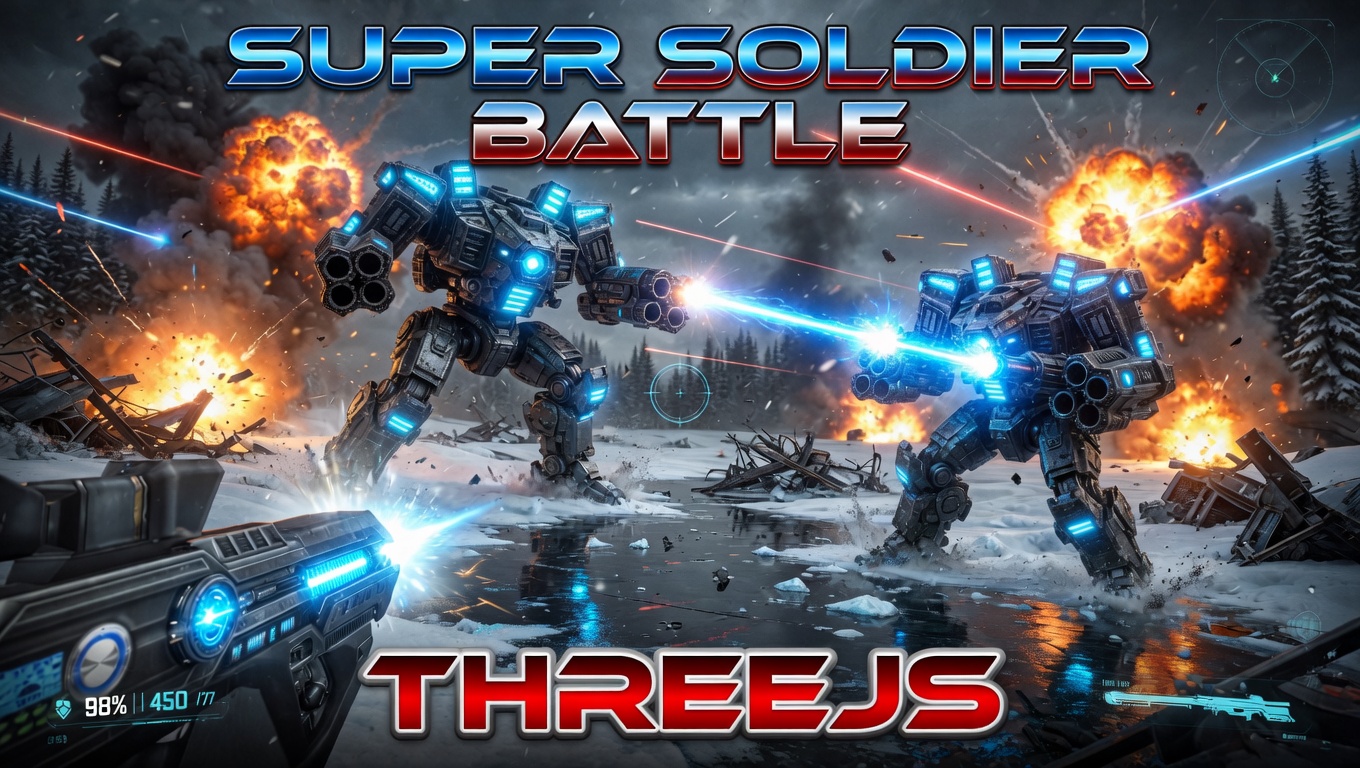
        { image: "https://www.shanebrumback.com/images/super-soldier-battl-game-demo.jpg", link: "https://www.supersoldierbattle.com" },
        { image: "https://www.shanebrumback.com/images/threejs-examples-interactive-image-particle-system.jpg", link: "https://www.shanebrumback.com/blog/fun-interactive-particle-system-programming-using-threejs.html" },
        { image: "https://www.shanebrumback.com/images/metasports-intro.png", link: "https://www.shanebrumback.com/videos.html" },
        { image: "https://www.shanebrumback.com/images/spacex-3d-falcon-9-launch-pad.jpg", link: "https://www.shanebrumback.com/spacex-falcon-9-launch-complex.html" }
    ];

    // 2) Scene, camera, renderer.
    const scene = new THREE.Scene();
    const camera = new THREE.PerspectiveCamera(65, window.innerWidth / window.innerHeight, 0.1, 4000);

    const renderer = new THREE.WebGLRenderer({ antialias: true, alpha: true });
    renderer.setPixelRatio(window.devicePixelRatio);
    renderer.setSize(window.innerWidth, window.innerHeight);
    renderer.toneMapping = THREE.ReinhardToneMapping;
    renderer.setClearColor(0x0000ff, 1);
    document.body.appendChild(renderer.domElement);

    // 3) Build the ring of textured image panels.
    const radius = 1500;
    const angle = (2 * Math.PI) / jsonData.length;
    const panels = [];

    jsonData.forEach(function (item, i) {
        const texture = new THREE.TextureLoader().load(item.image);
        texture.colorSpace = THREE.SRGBColorSpace;
        const material = new THREE.MeshBasicMaterial({ map: texture });
        const plane = new THREE.Mesh(new THREE.PlaneGeometry(1920, 1080), material);
        plane.position.set(radius * Math.cos(angle * i), 0, radius * Math.sin(angle * i));
        plane.lookAt(camera.position);
        plane.userData.link = item.link;
        scene.add(plane);
        panels.push(plane);
    });

    // A floor grid for depth.
    scene.add(new THREE.GridHelper(50, 50));

    // 4) Orbit the camera, clamped near eye level, wheel scrolls the page.
    camera.position.set(0, 50, 30);
    const controls = new OrbitControls(camera, renderer.domElement);
    controls.minPolarAngle = THREE.MathUtils.degToRad(80);
    controls.maxPolarAngle = THREE.MathUtils.degToRad(100);
    controls.rotateSpeed = 0.2;
    controls.enableZoom = false;
    controls.enablePan = false;

    // 5) Click a panel to navigate to its link.
    const raycaster = new THREE.Raycaster();
    const mouse = new THREE.Vector2();
    window.addEventListener('mousedown', function (event) {
        mouse.x = (event.clientX / window.innerWidth) * 2 - 1;
        mouse.y = -(event.clientY / window.innerHeight) * 2 + 1;
        raycaster.setFromCamera(mouse, camera);
        const hits = raycaster.intersectObjects(panels);
        if (hits.length > 0) window.location.href = hits[0].object.userData.link;
    });

    // 6) Render loop with a slow auto-spin, plus resize handling.
    function animate() {
        requestAnimationFrame(animate);
        controls.update();
        scene.rotation.y += 0.002;
        renderer.render(scene, camera);
    }
    animate();

    window.addEventListener('resize', function () {
        camera.aspect = window.innerWidth / window.innerHeight;
        camera.updateProjectionMatrix();
        renderer.setSize(window.innerWidth, window.innerHeight);
    });
</script>
</body>
</html>
What To Try Next
- Hover highlight: raycast on
mousemoveand scale the panel under the cursor up a little so it pops. - Smooth snapping: instead of free orbit, tween the ring so the nearest panel rotates to face front — a true carousel.
- Text labels: add a title under each image with a
CanvasTextureorCSS2DRenderer. - Mobile: the drag-to-orbit already works on touch; add a swipe to step one panel at a time.
Play My Free Browser Games
These are full Three.js experiences that run right in your browser — no download.