SELECT MULTIPLE 3D OBJECTS
WITH A RAYCASTER
By Shane Brumback · · Updated · Free Three.js tutorial · Level 1
To select multiple 3D objects in Three.js, cast a ray from the mouse with a Raycaster, keep every hit mesh in a Set instead of replacing the last one, and project object positions to the screen to pick everything inside a dragged box. Selected shapes then lift up and glow.
A beginner walkthrough of Raycaster, shift-click multi-select, drag box selection and an eased glow highlight in Three.js. The scene behind this page is the live demo, and the full copy-paste source is below.
LIVE DEMO
The shapes lighting up behind this page are a live Three.js scene. Launch the full-screen demo to click a shape, shift-click to add more, or drag a box to grab a whole group. Right-drag orbits, scroll zooms, Ctrl+A selects all and Delete clears. Launch asks for a free Google sign-in first. Press Esc or Exit to return.
Free Google sign-in · Click / Shift-click / Drag to select · Right-drag to orbit · Esc to exit
READY FOR ENDLESS TERRAIN?
This Level 1 demo picks shapes on a flat table. The Level 3 premium Terrain LOD tutorial streams endless hills with sand, grass, rock and snow blended in an onBeforeCompile shader, with LOD skirts, worker chunks and grass that follows you. Members unlock the full code; sign in to reveal it.
How Raycaster Selection Works
A Raycaster shoots an invisible line from the camera through the point you clicked and reports every Mesh it passes through, nearest first. Selecting one object is just taking the first hit. Selecting many means remembering earlier picks in a Set, toggling with Shift, and adding a drag rectangle that checks where each object lands on the screen.
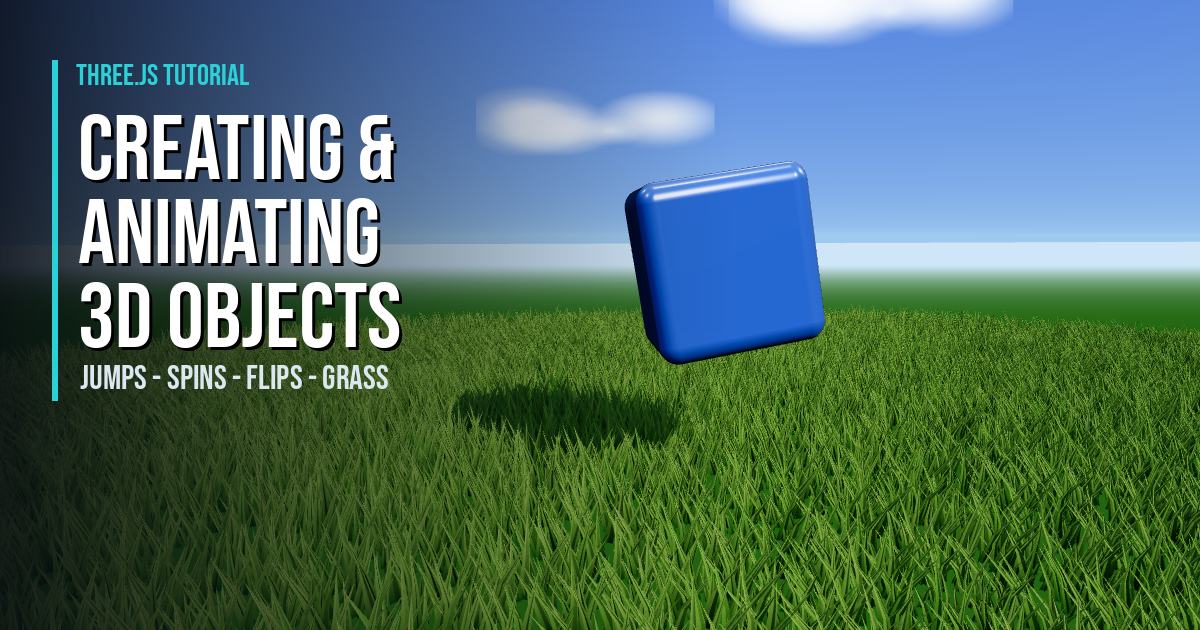
New to picking? Start with selecting a single 3D cube with a raycaster, then try raycasting against Minecraft models. The glossy look comes from the animating simple 3D objects tutorial.
Step-by-Step Code Breakdown
Every excerpt below is copied exactly from the full code further down.
1. Set up the scene, camera and renderer
In plain words: we make a dark 3D world, a camera that looks down at a table of shapes, and a renderer with soft shadows. Create a Scene with a background color and fog, a PerspectiveCamera and a WebGLRenderer with PCF soft shadows and ACES tone mapping, capping the pixel ratio on phones.
const scene = new THREE.Scene();
scene.background = new THREE.Color(0x070b16);
scene.fog = new THREE.Fog(0x070b16, 18, 46);
const camera = new THREE.PerspectiveCamera(50, innerWidth / innerHeight, 0.1, 200);
camera.position.set(0, 10, 17);

const renderer = new THREE.WebGLRenderer({ antialias: true });
renderer.setPixelRatio(Math.min(devicePixelRatio, isMobile ? 1.5 : 2));
renderer.setSize(innerWidth, innerHeight);
renderer.shadowMap.enabled = true;
renderer.shadowMap.type = THREE.PCFSoftShadowMap;
renderer.toneMapping = THREE.ACESFilmicToneMapping;
document.body.style.margin = '0';
document.body.appendChild(renderer.domElement);
2. Free the left mouse button for selecting
In plain words: we let the camera orbit with the right mouse button or two fingers, so a left click or one-finger drag is free for picking. Set OrbitControls mouseButtons LEFT to null and RIGHT to ROTATE, and touches ONE to null and TWO to DOLLY_ROTATE.
const controls = new OrbitControls(camera, renderer.domElement);
controls.target.set(0, 0.8, 0);
controls.enableDamping = true;
controls.autoRotate = true;
controls.autoRotateSpeed = 0.4;
controls.maxPolarAngle = Math.PI * 0.45;
controls.minDistance = 8;
controls.maxDistance = 30;
controls.mouseButtons = { LEFT: null, MIDDLE: THREE.MOUSE.DOLLY, RIGHT: THREE.MOUSE.ROTATE };
controls.touches = { ONE: null, TWO: THREE.TOUCH.DOLLY_ROTATE };
3. Light the scene and add a reflective floor
In plain words: we add reflections, a soft sky light and a shadow-casting key light, then a shiny floor with a cyan grid. Use a PMREM RoomEnvironment, a HemisphereLight and a DirectionalLight with castShadow, then a metallic CircleGeometry floor and a transparent GridHelper.
const pmrem = new THREE.PMREMGenerator(renderer);
scene.environment = pmrem.fromScene(new RoomEnvironment(), 0.04).texture;
scene.add(new THREE.HemisphereLight(0x8fb8ff, 0x101020, 0.6));
const key = new THREE.DirectionalLight(0xffffff, 2.2);
key.position.set(6, 14, 8);
key.castShadow = true;
key.shadow.mapSize.set(isMobile ? 1024 : 2048, isMobile ? 1024 : 2048);
key.shadow.camera.left = key.shadow.camera.bottom = -12;
key.shadow.camera.right = key.shadow.camera.top = 12;
scene.add(key);

const floor = new THREE.Mesh(
  new THREE.CircleGeometry(30, 64),
  new THREE.MeshStandardMaterial({ color: 0x0c1222, roughness: 0.35, metalness: 0.6 })
);
floor.rotation.x = -Math.PI / 2;
floor.receiveShadow = true;
scene.add(floor);
const grid = new THREE.GridHelper(40, 40, 0x2ad1d6, 0x1a2a44);
grid.material.transparent = true;
grid.material.opacity = 0.25;
grid.position.y = 0.01;
scene.add(grid);
4. Build a grid of pickable shapes with a halo
In plain words: we lay out 24 glossy shapes in rows and give each one a hidden glowing shell that appears when it is selected. Loop over a 6 by 4 grid, pick a geometry and color, add a slightly larger BackSide MeshBasicMaterial halo whose raycast is a no-op, and push every mesh into the pickables array.
const SHAPES = [
  new RoundedBoxGeometry(1.2, 1.2, 1.2, 4, 0.18),
  new THREE.SphereGeometry(0.72, 40, 24),
  new THREE.TorusGeometry(0.55, 0.22, 20, 48),
  new THREE.IcosahedronGeometry(0.78, 0),
  new THREE.ConeGeometry(0.7, 1.4, 32),
  new THREE.TorusKnotGeometry(0.45, 0.16, 96, 16)
];
const PALETTE = [0x3b82f6, 0xa855f7, 0xf97316, 0x22c55e, 0xec4899, 0xeab308];
const HIGHLIGHT = new THREE.Color(0x2ad1d6);

const pickables = [];
const COLS = 6, ROWS = 4, GAP = 2.6;
for (let i = 0; i < COLS * ROWS; i++) {
  const material = new THREE.MeshPhysicalMaterial({
    color: PALETTE[(i + 2 * Math.floor(i / COLS)) % PALETTE.length], metalness: 0.2, roughness: 0.3, clearcoat: 1, clearcoatRoughness: 0.1
  });
  const mesh = new THREE.Mesh(SHAPES[(i * 5 + Math.floor(i / COLS)) % SHAPES.length], material);
  mesh.castShadow = true;
  const x = (i % COLS - (COLS - 1) / 2) * GAP, z = (Math.floor(i / COLS) - (ROWS - 1) / 2) * GAP;
  mesh.position.set(x, 1, z);
  mesh.rotation.set(Math.random() * Math.PI, Math.random() * Math.PI, 0);
  const halo = new THREE.Mesh(mesh.geometry, new THREE.MeshBasicMaterial({
    color: HIGHLIGHT, side: THREE.BackSide, transparent: true, opacity: 0, depthWrite: false, blending: THREE.AdditiveBlending
  }));
  halo.scale.setScalar(1.16);
  halo.raycast = () => {};
  mesh.add(halo);
  const ring = new THREE.Mesh(new THREE.RingGeometry(0.85, 1.05, 48), new THREE.MeshBasicMaterial({
    color: HIGHLIGHT, transparent: true, opacity: 0, depthWrite: false, blending: THREE.AdditiveBlending
  }));
  ring.rotation.x = -Math.PI / 2;
  ring.position.set(x, 0.03, z);
  scene.add(ring);
  mesh.userData = { selected: false, glow: 0, phase: Math.random() * Math.PI * 2, halo, ring };
  scene.add(mesh);
  pickables.push(mesh);
}
5. Track the selection in a Set
In plain words: we keep a list of what is selected so adding, removing and clearing are each one line. A Set holds the selected meshes; setSelected flips the userData flag, adds or deletes the mesh, and updates the counter text.
const selected = new Set();
function setSelected(mesh, on) {
  mesh.userData.selected = on;
  if (on) selected.add(mesh); else selected.delete(mesh);
  hud.textContent = selected.size + ' / ' + pickables.length + ' selected';
}
function clearSelection() { [...selected].forEach((m) => setSelected(m, false)); }
6. Cast a ray from the mouse
In plain words: we turn the click position into a laser beam from the camera and ask which shape it hits first. Convert clientX and clientY to normalized device coordinates from -1 to 1, call raycaster.setFromCamera, then intersectObjects on the pickables and take the closest hit.
const raycaster = new THREE.Raycaster();
const pointer = new THREE.Vector2();
function pick(clientX, clientY) {
  pointer.set((clientX / innerWidth) * 2 - 1, -(clientY / innerHeight) * 2 + 1);
  raycaster.setFromCamera(pointer, camera);
  const hits = raycaster.intersectObjects(pickables, false);
  return hits.length ? hits[0].object : null;
}
7. Select everything inside a drag box
In plain words: we work out where each shape sits on the screen and keep the ones inside the rectangle you dragged. Project each mesh position with Vector3.project(camera), convert it to pixels, and select it when it falls inside the min and max corners of the box.
const screenPos = new THREE.Vector3();
function selectInRect(x0, y0, x1, y1, additive) {
  if (!additive) clearSelection();
  const minX = Math.min(x0, x1), maxX = Math.max(x0, x1), minY = Math.min(y0, y1), maxY = Math.max(y0, y1);
  for (const mesh of pickables) {
    screenPos.copy(mesh.position).project(camera);
    const sx = (screenPos.x + 1) / 2 * innerWidth, sy = (1 - screenPos.y) / 2 * innerHeight;
    if (sx >= minX && sx <= maxX && sy >= minY && sy <= maxY) setSelected(mesh, true);
  }
}
8. Handle click, shift-click and drag
In plain words: a plain click picks one shape, shift-click adds or removes, and a drag draws a box; on phones taps always add. On pointerdown store the start point and whether Shift, Ctrl or touch is held; on pointermove show the box after 6 pixels; on pointerup either select the rectangle or toggle the single raycast hit.
let drag = null;
renderer.domElement.addEventListener('pointerdown', (e) => {
  if (!interactive || e.button !== 0) return;
  drag = { x: e.clientX, y: e.clientY, moved: false, additive: e.shiftKey || e.ctrlKey || e.metaKey || e.pointerType === 'touch' };
});
addEventListener('pointermove', (e) => {
  if (!drag) return;
  const dx = e.clientX - drag.x, dy = e.clientY - drag.y;
  if (!drag.moved && Math.hypot(dx, dy) < 6) return;
  drag.moved = true;
  Object.assign(box.style, {
    display: 'block', left: Math.min(drag.x, e.clientX) + 'px', top: Math.min(drag.y, e.clientY) + 'px',
    width: Math.abs(dx) + 'px', height: Math.abs(dy) + 'px'
  });
});
addEventListener('pointerup', (e) => {
  if (!drag) return;
  if (drag.moved) {
    selectInRect(drag.x, drag.y, e.clientX, e.clientY, drag.additive);
  } else {
    const hit = pick(e.clientX, e.clientY);
    if (drag.additive) { if (hit) setSelected(hit, !hit.userData.selected); }
    else { clearSelection(); if (hit) setSelected(hit, true); }
  }
  box.style.display = 'none';
  drag = null;
});
9. Animate the highlight
In plain words: selected shapes smoothly lift up, spin faster, glow cyan and show a pulsing outline. Ease a glow value toward 0 or 1 every frame, then use it to drive the height, spin speed, emissive color, halo opacity and scale.
const clock = new THREE.Clock();
function render() {
  requestAnimationFrame(render);
  const dt = Math.min(clock.getDelta(), 0.05), t = clock.elapsedTime;
  if (!interactive) autoSelect(dt);
  for (const mesh of pickables) {
    const u = mesh.userData, target = u.selected ? 1 : 0;
    u.glow += (target - u.glow) * Math.min(dt * 8, 1);
    mesh.position.y = 1 + Math.sin(t * 1.5 + u.phase) * 0.12 + u.glow * 0.7;
    mesh.rotation.y += dt * (0.3 + u.glow * 1.5);
    mesh.material.emissive.copy(HIGHLIGHT).multiplyScalar(u.glow * 0.6);
    u.halo.material.opacity = u.glow * (0.75 + Math.sin(t * 6) * 0.2);
    u.ring.material.opacity = u.glow * 0.9;
    u.ring.scale.setScalar(1 + Math.sin(t * 4 + u.phase) * 0.06 * u.glow);
    mesh.scale.setScalar(1 + u.glow * 0.08);
  }
  controls.update();
  renderer.render(scene, camera);
}
render();
Want selected objects to do more? Make them follow another object, or turn the shapes into buttons in the interactive 3D menu tutorial.
The Full Code
Paste this module into a page that has the same import map as this one (Three.js 0.160 from unpkg). No build tools needed.
import * as THREE from 'three';
import { OrbitControls } from 'three/addons/controls/OrbitControls.js';
import { RoundedBoxGeometry } from 'three/addons/geometries/RoundedBoxGeometry.js';
import { RoomEnvironment } from 'three/addons/environments/RoomEnvironment.js';

const isMobile = matchMedia('(max-width: 768px)').matches;

const scene = new THREE.Scene();
scene.background = new THREE.Color(0x070b16);
scene.fog = new THREE.Fog(0x070b16, 18, 46);
const camera = new THREE.PerspectiveCamera(50, innerWidth / innerHeight, 0.1, 200);
camera.position.set(0, 10, 17);

const renderer = new THREE.WebGLRenderer({ antialias: true });
renderer.setPixelRatio(Math.min(devicePixelRatio, isMobile ? 1.5 : 2));
renderer.setSize(innerWidth, innerHeight);
renderer.shadowMap.enabled = true;
renderer.shadowMap.type = THREE.PCFSoftShadowMap;
renderer.toneMapping = THREE.ACESFilmicToneMapping;
document.body.style.margin = '0';
document.body.appendChild(renderer.domElement);

const controls = new OrbitControls(camera, renderer.domElement);
controls.target.set(0, 0.8, 0);
controls.enableDamping = true;
controls.autoRotate = true;
controls.autoRotateSpeed = 0.4;
controls.maxPolarAngle = Math.PI * 0.45;
controls.minDistance = 8;
controls.maxDistance = 30;
controls.mouseButtons = { LEFT: null, MIDDLE: THREE.MOUSE.DOLLY, RIGHT: THREE.MOUSE.ROTATE };
controls.touches = { ONE: null, TWO: THREE.TOUCH.DOLLY_ROTATE };

const pmrem = new THREE.PMREMGenerator(renderer);
scene.environment = pmrem.fromScene(new RoomEnvironment(), 0.04).texture;
scene.add(new THREE.HemisphereLight(0x8fb8ff, 0x101020, 0.6));
const key = new THREE.DirectionalLight(0xffffff, 2.2);
key.position.set(6, 14, 8);
key.castShadow = true;
key.shadow.mapSize.set(isMobile ? 1024 : 2048, isMobile ? 1024 : 2048);
key.shadow.camera.left = key.shadow.camera.bottom = -12;
key.shadow.camera.right = key.shadow.camera.top = 12;
scene.add(key);

const floor = new THREE.Mesh(
  new THREE.CircleGeometry(30, 64),
  new THREE.MeshStandardMaterial({ color: 0x0c1222, roughness: 0.35, metalness: 0.6 })
);
floor.rotation.x = -Math.PI / 2;
floor.receiveShadow = true;
scene.add(floor);
const grid = new THREE.GridHelper(40, 40, 0x2ad1d6, 0x1a2a44);
grid.material.transparent = true;
grid.material.opacity = 0.25;
grid.position.y = 0.01;
scene.add(grid);

const SHAPES = [
  new RoundedBoxGeometry(1.2, 1.2, 1.2, 4, 0.18),
  new THREE.SphereGeometry(0.72, 40, 24),
  new THREE.TorusGeometry(0.55, 0.22, 20, 48),
  new THREE.IcosahedronGeometry(0.78, 0),
  new THREE.ConeGeometry(0.7, 1.4, 32),
  new THREE.TorusKnotGeometry(0.45, 0.16, 96, 16)
];
const PALETTE = [0x3b82f6, 0xa855f7, 0xf97316, 0x22c55e, 0xec4899, 0xeab308];
const HIGHLIGHT = new THREE.Color(0x2ad1d6);

const pickables = [];
const COLS = 6, ROWS = 4, GAP = 2.6;
for (let i = 0; i < COLS * ROWS; i++) {
  const material = new THREE.MeshPhysicalMaterial({
    color: PALETTE[(i + 2 * Math.floor(i / COLS)) % PALETTE.length], metalness: 0.2, roughness: 0.3, clearcoat: 1, clearcoatRoughness: 0.1
  });
  const mesh = new THREE.Mesh(SHAPES[(i * 5 + Math.floor(i / COLS)) % SHAPES.length], material);
  mesh.castShadow = true;
  const x = (i % COLS - (COLS - 1) / 2) * GAP, z = (Math.floor(i / COLS) - (ROWS - 1) / 2) * GAP;
  mesh.position.set(x, 1, z);
  mesh.rotation.set(Math.random() * Math.PI, Math.random() * Math.PI, 0);
  const halo = new THREE.Mesh(mesh.geometry, new THREE.MeshBasicMaterial({
    color: HIGHLIGHT, side: THREE.BackSide, transparent: true, opacity: 0, depthWrite: false, blending: THREE.AdditiveBlending
  }));
  halo.scale.setScalar(1.16);
  halo.raycast = () => {};
  mesh.add(halo);
  const ring = new THREE.Mesh(new THREE.RingGeometry(0.85, 1.05, 48), new THREE.MeshBasicMaterial({
    color: HIGHLIGHT, transparent: true, opacity: 0, depthWrite: false, blending: THREE.AdditiveBlending
  }));
  ring.rotation.x = -Math.PI / 2;
  ring.position.set(x, 0.03, z);
  scene.add(ring);
  mesh.userData = { selected: false, glow: 0, phase: Math.random() * Math.PI * 2, halo, ring };
  scene.add(mesh);
  pickables.push(mesh);
}

const selected = new Set();
function setSelected(mesh, on) {
  mesh.userData.selected = on;
  if (on) selected.add(mesh); else selected.delete(mesh);
  hud.textContent = selected.size + ' / ' + pickables.length + ' selected';
}
function clearSelection() { [...selected].forEach((m) => setSelected(m, false)); }

const hud = document.createElement('div');
hud.style.cssText = 'position:fixed;left:50%;bottom:22px;transform:translateX(-50%);padding:8px 18px;border-radius:999px;background:rgba(10,15,28,.85);color:#2ad1d6;font:600 14px system-ui,sans-serif;border:1px solid rgba(42,209,214,.4);pointer-events:none;z-index:1100';
hud.textContent = '0 / ' + pickables.length + ' selected';
document.body.appendChild(hud);
const box = document.createElement('div');
box.style.cssText = 'position:fixed;border:1px solid #2ad1d6;background:rgba(42,209,214,.12);pointer-events:none;display:none;z-index:5';
document.body.appendChild(box);

const raycaster = new THREE.Raycaster();
const pointer = new THREE.Vector2();
function pick(clientX, clientY) {
  pointer.set((clientX / innerWidth) * 2 - 1, -(clientY / innerHeight) * 2 + 1);
  raycaster.setFromCamera(pointer, camera);
  const hits = raycaster.intersectObjects(pickables, false);
  return hits.length ? hits[0].object : null;
}

const screenPos = new THREE.Vector3();
function selectInRect(x0, y0, x1, y1, additive) {
  if (!additive) clearSelection();
  const minX = Math.min(x0, x1), maxX = Math.max(x0, x1), minY = Math.min(y0, y1), maxY = Math.max(y0, y1);
  for (const mesh of pickables) {
    screenPos.copy(mesh.position).project(camera);
    const sx = (screenPos.x + 1) / 2 * innerWidth, sy = (1 - screenPos.y) / 2 * innerHeight;
    if (sx >= minX && sx <= maxX && sy >= minY && sy <= maxY) setSelected(mesh, true);
  }
}

let drag = null;
renderer.domElement.addEventListener('pointerdown', (e) => {
  if (!interactive || e.button !== 0) return;
  drag = { x: e.clientX, y: e.clientY, moved: false, additive: e.shiftKey || e.ctrlKey || e.metaKey || e.pointerType === 'touch' };
});
addEventListener('pointermove', (e) => {
  if (!drag) return;
  const dx = e.clientX - drag.x, dy = e.clientY - drag.y;
  if (!drag.moved && Math.hypot(dx, dy) < 6) return;
  drag.moved = true;
  Object.assign(box.style, {
    display: 'block', left: Math.min(drag.x, e.clientX) + 'px', top: Math.min(drag.y, e.clientY) + 'px',
    width: Math.abs(dx) + 'px', height: Math.abs(dy) + 'px'
  });
});
addEventListener('pointerup', (e) => {
  if (!drag) return;
  if (drag.moved) {
    selectInRect(drag.x, drag.y, e.clientX, e.clientY, drag.additive);
  } else {
    const hit = pick(e.clientX, e.clientY);
    if (drag.additive) { if (hit) setSelected(hit, !hit.userData.selected); }
    else { clearSelection(); if (hit) setSelected(hit, true); }
  }
  box.style.display = 'none';
  drag = null;
});
addEventListener('keydown', (e) => {
  if (!interactive) return;
  if (e.key === 'a' && (e.ctrlKey || e.metaKey)) { e.preventDefault(); pickables.forEach((m) => setSelected(m, true)); }
  if (e.key === 'Delete' || e.key === 'Backspace') clearSelection();
});

let interactive = true;
let autoTimer = 0;
function autoSelect(dt) {
  autoTimer -= dt;
  if (autoTimer > 0) return;
  autoTimer = 1.4;
  if (selected.size > 9) clearSelection();
  const start = Math.floor(Math.random() * pickables.length);
  for (let k = 0; k < 3; k++) setSelected(pickables[(start + k * 5) % pickables.length], true);
}

const clock = new THREE.Clock();
function render() {
  requestAnimationFrame(render);
  const dt = Math.min(clock.getDelta(), 0.05), t = clock.elapsedTime;
  if (!interactive) autoSelect(dt);
  for (const mesh of pickables) {
    const u = mesh.userData, target = u.selected ? 1 : 0;
    u.glow += (target - u.glow) * Math.min(dt * 8, 1);
    mesh.position.y = 1 + Math.sin(t * 1.5 + u.phase) * 0.12 + u.glow * 0.7;
    mesh.rotation.y += dt * (0.3 + u.glow * 1.5);
    mesh.material.emissive.copy(HIGHLIGHT).multiplyScalar(u.glow * 0.6);
    u.halo.material.opacity = u.glow * (0.75 + Math.sin(t * 6) * 0.2);
    u.ring.material.opacity = u.glow * 0.9;
    u.ring.scale.setScalar(1 + Math.sin(t * 4 + u.phase) * 0.06 * u.glow);
    mesh.scale.setScalar(1 + u.glow * 0.08);
  }
  controls.update();
  renderer.render(scene, camera);
}
render();

addEventListener('resize', () => {
  camera.aspect = innerWidth / innerHeight;
  camera.updateProjectionMatrix();
  renderer.setSize(innerWidth, innerHeight);
});
Frequently Asked Questions
How do you select multiple objects with a Three.js Raycaster?
Keep the selected meshes in a Set. On each click, cast a ray with raycaster.setFromCamera and intersectObjects, then add the hit mesh to the Set, or toggle it when Shift is held, instead of replacing the old selection.
How does box or drag selection work in Three.js?
Record where the drag starts and ends, then project each object position to the screen with Vector3.project(camera). Any object whose screen point falls inside the rectangle gets selected.
How do you highlight a selected 3D object?
Raise the emissive color of its material and show a slightly larger copy of the mesh with a BackSide basic material behind it as an outline. Easing a glow value each frame makes the highlight fade in smoothly.
Why does the raycaster need normalized device coordinates?
setFromCamera expects the pointer as x and y from -1 to 1 across the canvas, so you divide clientX by the width, times 2, minus 1, and flip the y axis.
Can I orbit the camera and still click to select?
Yes. Set OrbitControls mouseButtons LEFT to null and RIGHT to ROTATE so left click and drag are free for selecting, and use two fingers to orbit on touch screens.
Why do I need to sign in to launch the live demo?
The tutorial and its full code are free to read. The full-screen Live Demo asks for a free Google sign-in first, the same gate used across the site, so I know who is learning from these tutorials.
Play It and Keep Learning
Click-to-select and raycast picking like this power Super Soldier Battle, free in your browser. Browse every Three.js tutorial, read the articles, or search the site.
Need Three.js interaction or WebGL work? I take freelance and contract work: contact me.
Play Game