HOW TO BUILD AN
EDUCATIONAL SPACE GAME
By Shane Brumback · Published · Advanced Three.js tutorial · about 45 minutes
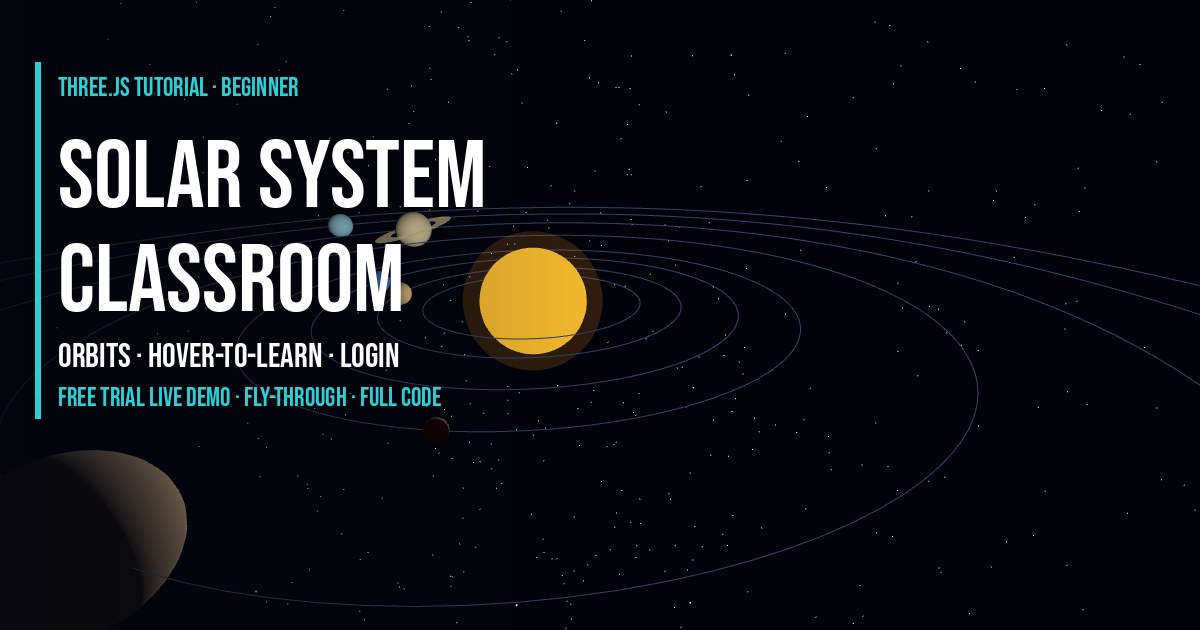
Part 2 of the series: learn how educational 3D games are built — a world worth exploring, interactions that reward discovery, a learning UI that teaches at the right moment, and progress that keeps students going. We take the Beginner solar system and turn it into a full learning game: students fly a spaceship up to each world; when they get close it glows, and selecting it (click, tap, Enter or the A button) opens a card with its picture and facts. It is the worked example from my article on creating 3D virtual educational worlds.
LIVE DEMO
The solar system behind this page is the demo. Sign in free to launch it full screen and see every educational-game system working together: explore the world, fly up to a planet until it glows, select it to open its WORLD DISCOVERED card, and track your progress to all 10 goals: the Sun, 8 planets and a comet. In the full game, reaching every goal unlocks a 25-question Mission Quiz. The ship is just how learners move. Spot the comet for a bonus — it is ported from my Three.js comet particle system tutorial. Every signed-in visitor gets a 3-minute free trial of the full-screen classroom; members get unlimited time.
Advanced (default): the full educational game — fly close until a world glows, select it to open a discovery card with its picture and facts, progress and a bonus comet. Beginner: the simpler first-version classroom scene — fly with WASD and hover planets.
Throttle: W / S · Turn: A / D or Left / Right · Pitch: Up / Down · Climb: E / Q · Boost: Shift · Xbox: left stick fly, RT / LT throttle / brake, LB / RB boost, A explore, B close · Phones: landscape, left stick pitch + yaw, right stick throttle · Learn: fly close until a world glows, then click, tap, Enter or A · Sound: speaker button top-left · Esc to exit (the full game opens a pause menu)
The Solar System Series
- Article: Creating 3D Virtual Educational Worlds — the design ideas.
- Beginner tutorial — orbits, WASD fly-through, hover-to-learn and a classroom login.
- Advanced tutorial — build a full educational 3D game: fly-up-and-select discovery, learning cards, progress, a Mission Quiz, VFX, touch and Xbox controls.
- Play Planet Quest: Solar System Explorer — the finished game.
How to Build a Solar System in Three.js (Quick Answer)
Make a sphere for the Sun with a PointLight at its center, then put each planet mesh inside an empty Object3D pivot and rotate the pivots at different speeds to animate the orbits. Store each planet's facts in mesh.userData. Let the player fly a third-person ship; every frame find the nearest world within range of the ship and make it glow with an outline shader. When the player clicks, taps, presses Enter or the A button, open an HTML card with that world's facts, count it as discovered and stop its glow. When every goal is found, unlock a quiz.
Introduction
A diagram of the solar system tells students the planet order. A 3D solar system lets them feel it: how small Mercury is next to Jupiter, how slowly Neptune crawls while Mercury races around the Sun, and how much empty space there is between worlds. That is the difference between a render and an educational world.
In plain words: we build a little space classroom. A student signs in, the camera sweeps across the solar system to their ship, and they fly with the keyboard, touch joysticks or an Xbox controller. When they fly close to a planet it glows; selecting it opens a card with its picture, type, day, year, moons and a fun fact. Discovered worlds stop glowing, a counter tracks the 10 goals, and finding them all unlocks a Mission Quiz.
This tutorial is the hands-on companion to Creating 3D Virtual Educational Worlds with Three.js, which explains the five systems every learning world needs. Here we build all five. The tutorial is free to read; the step-by-step code breakdown and the full copy-paste code are for members.
Frequently Asked Questions
Is Planet Quest an educational 3D game world?
Yes. Planet Quest is a free educational 3D game world for STEM learning, and this tutorial shows how to build it: ship flight, proximity discovery, World Discovered cards, 10 goals and a Mission Quiz. It is a Three.js game rendered with WebGL that runs in the browser on desktop, phones and Xbox controller.
How do I add a comet to a Three.js solar system?
Use the approach from the comet particle system tutorial: one THREE.Points cloud with a dust population and an ion population, both pushed away from the Sun, plus a glowing coma sprite. Move the whole comet group along an eccentric orbit and update the sun direction every frame so the tails always point away from the Sun.
How do I make planets orbit the Sun in Three.js?
Put each planet mesh inside an empty Object3D pivot at the center of the scene, offset the mesh by its orbit distance, and rotate the pivot a little every frame. The pivot carries the planet around the Sun. Give each pivot its own speed so inner planets move faster.
How does a player discover a planet in Planet Quest?
There is no hovering or aiming. The player flies the ship up to a world. Every frame the scene finds the nearest undiscovered world within range of the ship and makes it glow with a cyan outline shader and a label. Clicking or tapping the glowing world, or pressing Enter or the A button, opens a WORLD DISCOVERED card with its name, picture, type, day, year, moons and a fun fact. Keep Exploring closes it, and that world stops glowing because it is already discovered.
How do I make a third-person spaceship in Three.js?
Build the ship as a Group, turn it with rotateY and rotateX from the keys, and move it along its forward vector (0,0,-1) rotated by its quaternion. Each frame, place the camera at an offset behind and above the ship in the ship frame and lerp toward it, then slerp the camera to look a little ahead of the ship. That gives a smooth chase camera.
How do I add a login to a Three.js educational game?
Show a login form over the canvas and only start the animation loop after it is submitted. The free code uses a simple classroom name and class code saved in localStorage, which is fine for prototypes. For real student accounts use a proper auth provider and store progress on a server.
How do I add a quiz that unlocks after exploring?
Count goals in a Set and fire a custom event (solar-mission-complete) when every goal is reached. A separate quiz module listens for that event, pauses the game, and runs questions stored as plain arrays. Add ?quiz=1 to the game URL to open the quiz right away while testing.
How do asteroid collisions work in Planet Quest?
Save each instanced rock position and radius when you build the belt. Each frame, rotate the ship position into the belt's local space and do a sphere distance check against the nearby rocks. In Planet Quest the belt is fly-through: a rock you touch is knocked aside and springs back, the ship only gets a small nudge, and a gentle “Watch out — asteroid!” cue appears. Hits never cost points.
Is the solar system to scale?
No. Sizes and distances are scaled so every planet is visible and reachable in a few seconds of flight. True scale would put Neptune thousands of Earth widths away, which makes a great classroom discussion.
Is this tutorial free?
Yes, the tutorial is free to read. The full-screen live demo needs a free Google sign-in and includes a 3-minute free trial; members get unlimited time. The 30-step code breakdown and the full copy-paste code are for members.
What controls does Planet Quest support?
Keyboard: W and S throttle, A and D or Left and Right turn, Up and Down pitch, E and Q climb, Shift boost. Xbox controller: left stick flies, RT and LT throttle and brake, LB or RB boost, A explores, B closes a card and Start pauses. Phones: a left joystick for pitch and yaw, tuned with a small dead zone and a gentle response curve, and a right joystick for throttle. Sound starts on your first click, tap or key press, and a speaker button in the top-left corner mutes it.
How do I pause Planet Quest?
Press Esc, or Start on an Xbox controller. A pause menu offers Continue Playing and Exit Game; use the arrow keys or W and S to choose and Enter to confirm, or press A to continue and B to exit. If a discovery card is open, Esc closes the card first.
What Students Learn
- The order and relative sizes of the eight planets.
- That inner planets orbit faster than outer ones — seen, not memorized.
- Key facts per planet: type, day length, year length, moons and one memorable fact.
- How vast and empty space is, something a flat diagram cannot show.
The scene teaches through discovery. Nothing lectures the student: they choose where to fly and curiosity unlocks the content. Tell students sizes and distances are scaled for readability, then ask how far away Neptune would really be. Moon counts change as new moons are confirmed, so have students check NASA's current planet pages too.
The Five Systems in This Scene
| System | Solar system implementation |
|---|---|
| World | Sun, planet spheres, orbit lines, Milky Way starfield, comet and asteroid belt |
| Player | Third-person spaceship with a chase camera and an opening camera sweep; keyboard, Xbox controller, dual joysticks on phones; Esc pause menu in the game |
| Interactive objects | 10 goals (Sun, 8 planets, a comet) that glow when you fly close and open when you select them, plus a fly-through asteroid belt bonus zone |
| Learning UI | WORLD DISCOVERED card (picture, type, day, year, moons, fun fact, Keep Exploring) and a 25-question Mission Quiz |
| Identity and progress | Explored X / 10 HUD with the next goal, discovered worlds stop glowing, quiz unlocks after every goal, saved high score, classroom login |
How It Works
- Set up the renderer, scene and camera — In plain words: We make the 3D window and a camera far enough back to see the whole solar system. ACES tone mapping keeps the bright Sun from clipping, and the pixel ratio is capped so it stays smooth on school laptops and phones.
- Keep the learning content in data — In plain words: Every planet is one plain object: size, distance, orbit speed and the facts students will discover. Teachers can edit facts here without touching any 3D code.
- Make VFX textures in code — In plain words: Small canvas drawings become glow sprites, banded gas-giant textures and cratered rocky planets, so the whole demo loads with zero image files. The Jupiter texture paints its Great Red Spot as a soft, feathered oval (a pale halo plus a radial-gradient core) so it blends into the bands instead of looking like a sticker.
- Build a glowing Sun — In plain words: A shader animates a boiling plasma surface with darker edges (limb darkening). Two additive sprites make the corona and halo, and a PointLight at the center lights every planet. The Sun is the real light: a non-decaying PointLight (decay 0) with only a little ambient and hemisphere fill, so every planet and asteroid has a lit day side and a dark night side. The game uses the same lighting on its 8x map; game-only extras are the bigger map, 25% larger worlds on phones and 2x belt rocks.
- Twinkling stars and nebula clouds — In plain words: The sky comes from one shared helper, createMilkyWaySky() in js/milky-way.js: a faint noise-shader Milky Way band on an inside-out sphere plus a starfield with a realistic spread of faint and bright stars, colour tints and a gentle twinkle. Big soft coloured sprites far away add nebula clouds so space never looks flat. In the game the whole sky group rides with the camera, so the huge map never flies past the stars. The Full Code inlines milky-way.js so it still runs as one file.
- Planets, atmospheres, Saturn rings and orbit trails — In plain words: Each planet rides an orbit pivot with a soft atmosphere: a thin glowing rim shader that hugs the limb plus a camera-facing gradient haze sprite behind it (no glass shell), and a fading trail. Saturn gets a procedural multi-band ring shader with a Cassini division, crisp anti-aliased edges and the planet shadow cast across the rings. An asteroid belt sits between Mars and Jupiter. The asteroid belt is shared by every advanced scene: textured 3D rocks drawn with InstancedMesh plus a layer of tiny light-gray dust points (size 0.07, opacity 0.6). Add ?beltDots=off to the URL to hide the dust.
- Add the comet — In plain words: The comet is adapted from my comet particle system tutorial (linked in the live demo card): a rocky nucleus, a glowing coma, a curved dust tail and a straight blue ion tail that always point away from the Sun, on an eccentric orbit that speeds up near the Sun. Students get a bonus when they spot it. The comet is ported straight from the Comet tutorial and scaled to one third (K = 0.32 / 3) so it fits the solar system; the game doubles it for the 8x map and gives it a longer tail.
- Add bloom — In plain words: An UnrealBloomPass makes the Sun, engine and comet glow. The threshold is high so only bright things bloom.
- Fly a spaceship in third person — In plain words: The ship is built from simple shapes. W and S set the throttle, A and D (or Left and Right) turn, Up and Down pitch, E and Q climb, Shift boosts. The chase camera sits behind and above the ship and smoothly follows it, the ship banks into turns, and the engine leaves a glowing exhaust trail. On phones the same flight reads a touch input object filled by two on-screen joysticks (see the mobile step). While a popup or the quiz is open, the global __solarPaused flag stops the ship. Flight uses quaternions, so you can pitch all the way over and fly full loops with no gimbal lock. In the advanced scenes (homepage, tutorial, article) the ship flies at half speed (SHIP_SF = 0.5) because the map is small; the game keeps full speed on its bigger map, then halves it with speedScale 0.5.
- Fly near a world, then tap or click it — In plain words: When the ship flies near a planet, the Sun or the comet, that world glows with a cyan outline shader and a small Tap to explore (phones) or Click to explore (desktop) label. You do not aim at or point at a world: you fly up to it, it glows, and then you select it. Nothing pops up on its own: the WORLD DISCOVERED card opens only when the player clicks or taps the glowing world, presses Enter on desktop or A on an Xbox controller, so flying stays calm. A world counts as explored when its card opens. Highlight distances (r = the world's radius): the ADVANCED scene highlights a world within r x 2.75 + 0.5, the GAME from r x 12 + 10. The asteroid belt works the same way: its nearest rocks glow, and the bonus card opens only when you tap or click them. Once a world has been discovered it stops glowing and is skipped by the highlight search, so the glow always points at somewhere new (see step 28). A short debounce stops the press that closes a card from opening anything else, and the chime plays when a card opens.
- Animate everything in one loop — In plain words: Every frame the orbits turn, the Sun and stars animate, the comet moves, the ship flies and the HUD updates. Delta time is capped so a slow frame never makes planets jump.
- Turn the scene into a game page with options — In plain words: Planet Quest is not a separate engine. The game page loads the same shared module as this tutorial and passes game-only options: a world 8x bigger, a richer asteroid belt, half-speed flight and turning (speedScale and axisScale 0.5) for calmer control on the big map, and the Mission Quiz module. Options become window flags that the scene reads, so the demo and the tutorials stay simple.
- Define the goals and count progress — In plain words: A goal is any body the learner must reach. The game has 10: the Sun, the 8 planets and a comet (comets are a general class of icy body, so this one has no name). A Set remembers what was reached and the HUD shows Explored X / 10 plus the nearest goal still to find, so learners always know what to do next.
- Announce each discovery with events — In plain words: When the player taps or clicks a highlighted world, the scene does not draw any game UI itself. It fires a solar-body-arrived event with the name, facts, a picture and the progress count. When the last goal is reached it fires solar-mission-complete. Any game module can listen, which keeps 3D code and learning UI separate. In the game, the small proximity info panel is switched off (COMET_GOAL is true), so this celebration popup is the only learning card. Both the game and the advanced demo now use this same event, so the advanced tutorial demo shows the exact same WORLD DISCOVERED popup. Each world fires once (the visited Set).
- Show a WORLD DISCOVERED popup — In plain words: The quiz module listens for solar-body-arrived and shows a game-style card: the world name, its picture, its Type, Day, Year and Moons, a fun fact, progress and a KEEP EXPLORING button (Enter, Space or Esc also work). Flight is paused while it is open. If the final discovery also completes the mission, the quiz waits until the card is closed. The advanced demo loads this same module with initPlanetQuestQuiz({ popupOnly: true }): the identical popup, pause and chime, but no Mission Quiz button. The homepage and article run the scene as an autopilot background, so they never pause and stay silent.
- Build a solid asteroid belt — In plain words: The game adds hundreds of 3D rocks in three size classes to the belt between Mars and Jupiter. Each vertex is pushed in or out by a hash of its position, so shared corners move together and every rock stays a closed, solid shape. One InstancedMesh draws them all in a single call, and each rock's position and radius are saved for collisions. The belt is uneven on purpose: smooth angular noise changes its density, width, centre and thickness around the ring. Three rock shapes share one procedural rock texture, one InstancedMesh each (three draw calls).
- Fly through the asteroid belt — In plain words: Every frame the ship position is rotated into the belt's own (spinning) space. Only if it is inside the belt ring do we test the rocks, with a simple sphere-sphere distance check. The belt is fly-through: a rock you touch is knocked aside and springs back to its place later, and the ship only gets a small nudge, so it never gets stuck and never loses speed or points. At most once every 1.5 seconds a touch fires solar-asteroid-hit, adds a small camera shake and plays a thud; the quiz module shows a gentle "Watch out — asteroid!" cue. Inside the belt the rocks nearest the ship glow with the same outline shader and an Asteroid Belt label appears; clicking or tapping a glowing rock or the label (or pressing Enter or A) fires solar-belt-entered and opens the bonus card. After that the belt counts as found and stops glowing.
- Belt bonus card and hit feedback — In plain words: The belt is a bonus zone, not a goal, so it never blocks the quiz. Flying in shows a BONUS ZONE DISCOVERED card with belt facts (these appear in the quiz too), and touching a rock just shows a friendly cyan "Watch out — asteroid!" cue for under a second. Hits never cost points: it is an educational game.
- Write the Mission Quiz as data — In plain words: Questions are plain arrays: question, correct answer, three wrong answers. Every answer comes from a fact the learner already saw in a popup, including comet and asteroid questions. Ranks map the number correct to stars and a title.
- Unlock and run the quiz after every goal — In plain words: The quiz opens only when solar-mission-complete fires, so a learner must reach all 10 goals first. It shuffles the questions and answers, scores 100 points plus a streak bonus, shows instant feedback, then a final score with stars, rank, accuracy and a saved high score. Keys A to D or 1 to 4 answer.
- Test the quiz with ?quiz=1 — In plain words: Flying to 10 goals every time you change a question is slow. Adding ?quiz=1 (or ?testQuiz=1) to the game URL launches the game and opens the quiz about 2 seconds later. Try it: https://www.shanebrumback.com/planet-quest-solar-system-explorer.html?quiz=1
- Mobile: dual joysticks, no BOOST, HUD top-left — In plain words: Phones get two sticks: left for pitch and yaw, right for throttle. They write into one shared input object that the flight code adds to the keyboard values. The left stick is tuned so small thumb moves give fine control: an 11% dead zone in the centre, then a |x|1.5 response curve, scaled by a 0.6 gain (opts.leftShape can change these). Throttle stays linear. There is no BOOST button on phones, and the Explored HUD moves to the top-left corner so the sticks have room.
- Keep planets and the ship easy to see — In plain words: Learners cannot discover what they cannot see. Planets use their own texture as an emissive map, brighter in the game, and the ship has a bright emissive hull plus a small light that travels with it, so both stay readable far from the Sun. Update: the Sun now does the lighting, so planets use only a tiny self-glow (emissiveIntensity 0.04) and the night side stays dark; the ship keeps its bright hull and travelling key light.
- Gate the game behind a classroom login — In plain words: In the free full code, students type a name and class code before the game starts. Their explored worlds are saved in localStorage so progress survives a refresh (and Exit Game in the pause menu brings them back to this screen). This is prototype auth for classrooms, not real security; for graded work use a real auth provider and save progress on a server. The live Planet Quest page uses the site's own sign-in instead.
- Audio: procedural sound with the Web Audio API — In plain words: All sound lives in one small module, js/solar-audio.js, and uses no audio files. Every sound is built in code with the Web Audio API. Browsers keep audio locked until a real click, tap or key press, so the module listens for the first such gesture anywhere on the page, from the moment it loads, and creates and resumes the AudioContext then. A gamepad press is not a real gesture in most browsers, so controller presses only try to resume, and while the game is live but audio is still locked a small PRESS ANY KEY OR CLICK FOR SOUND hint shows. The engine stays at zero volume until the demo or game is live, so a page that is just showing the scene stays silent.
- Highlight shader and tap to explore — In plain words: Instead of a flat square, the world in range gets a geometry-based outline. A fresnel rim shell (a copy of the mesh pushed out along its normals, additive, brightest where the surface turns away from the camera) glows around spheres (pushed out radially so it stays smooth on low-poly meshes), and an inverted hull (the same copy drawn back faces only in solid cyan) outlines complex shapes like the comet and Saturn's rings. Both pulse gently. A short tap or click (little movement, not started on a joystick or button) is raycast against that one highlighted mesh, with a generous screen-space radius on touch screens, and opens the WORLD DISCOVERED popup. (The old three.js OutlinePass works in screen space and struggles with thin or complex geometry; these shells follow the real mesh.)
- Xbox controller support — In plain words: an Xbox (or any standard) controller now flies the ship. The browser's Gamepad API is polled every frame with navigator.getGamepads(); a 0.15 deadzone stops stick drift. The left stick flies plane-style (push up = nose down, pull back = nose up, left/right = turn) with the same pitch clamp and auto-level, and no roll. RT or right stick up adds throttle, LT or right stick down brakes to a stop and never reverses, LB/RB boost. Buttons are edge-detected: A opens the highlighted world or asteroid belt card and, when the card is open, presses Keep Exploring; B closes the card; Start opens the pause menu in the game (see step 30) and closes an open card. The Mission Quiz opens with A on its MISSION QUIZ button. While a controller is connected the label reads Press A to explore and a small green Xbox controller icon marked Connected appears at the bottom left of the screen on desktop (above the Explored HUD). On desktop a Select Controls screen appears before play (Keyboard & Mouse or Xbox Controller, switched with the arrow keys and chosen with Enter or a click); picking Xbox shows “Press any button on your controller” with live detection (browsers only reveal a controller after a button press); once detected it shows XBOX CONTROLLER CONNECTED with a pulsing green controller and starts automatically in about a second; the simulation stays paused until you choose, and the last choice is remembered in localStorage. Touch devices skip it. For the full Gamepad API walkthrough (button map, deadzones, connect / disconnect events) see the Three.js Xbox controller tutorial.
- Discovered worlds stop glowing — In plain words: A world glows only until you discover it. updateHover() skips every name already in the visited set, so a discovered planet, the Sun or the comet gets no glow, no label and no prompt, and its card cannot be reopened by flying past again. The asteroid belt does the same with a window.__solarBeltFound flag set when its bonus card opens. The glow always means “something new here”, and the Explored counter and the Next hint keep pointing at the worlds you still need.
- The opening camera sweep — In plain words: When the game starts, the camera does not just appear behind the ship. For about 8 seconds it glides along one Catmull-Rom spline from a wide, high view beyond the Sun, across the solar system and round into the chase position behind your ship. Speed along the path depends on the distance to the ship, so it slows smoothly as it arrives, and the turn rate is capped so it never whips round. The ship waits until the sweep ends. After the first second any key, click, tap or controller button skips it with a quick 0.6 second ease into the chase view. The tutorial demo on this page uses a shorter 3 second sweep.
- The Esc pause menu — In plain words: In the game, Esc (or Start on an Xbox controller) opens a PAUSED menu with two choices: Continue Playing and Exit Game. Arrow keys or W and S move between them, Enter picks, A continues and B exits; Esc again simply continues. While it is open window.__solarPaused stops the ship and window.__pqPauseOpen stops the scene from reading the controller, so nothing moves behind the menu. If a discovery card or the quiz is open, Esc closes that first instead of pausing. The live game also pauses itself when pointer lock or fullscreen is lost. The tutorial demo on this page keeps Esc as a quick exit. This is the compact version used in the Full Code below:
Taking It Further
- Teacher question packs: load the quiz array from a JSON file per class so teachers can write their own questions.
- Time slider: bind the orbit time scale to a range input so students control time.
- Real textures: swap the colors for planet maps with TextureLoader, like in the transparent PNG textures tutorial.
- Moons: nest a moon pivot inside Earth's mesh — the same pivot trick one level deeper.
- Teacher dashboard: with real auth, send explored planets to a backend to see class progress.
- Read the design side in Creating 3D Virtual Educational Worlds with Three.js.